1
Step 4 – Adding effects
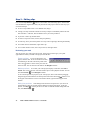
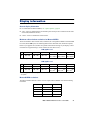
Video Editor special effects fall into these categories:
Transition effects – Applied between video clips; for example, fades or wipes.
Video filters – Applied on video clips; for example, blur or whirlpool effects.
Audio filters – Applied on sound clips; for example, echoes or amplification.
Overlays – To make clips appear “on top of” other clips. The underlying clip shows through
the transparent parts of the overlay clip. For example, to make titles appear over your video
clips.
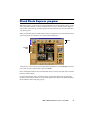
Moving paths – To move clips within the video frame. For example, to make title clips scroll
across your frame, or to zoom in on a video clip.
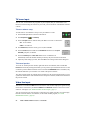
Adding a transition effect
1
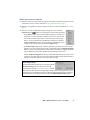
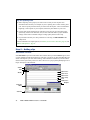
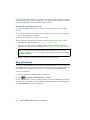
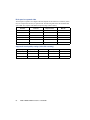
Make sure the end time of a clip on the Va or Vb track overlaps the start time
of a clip on the other track (Vb or Va). The amount they overlap will be the
length of time of the transition effect.
2
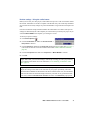
Double-click the Fx track to open the Production Library Transition Effect
window.
3
Drag the effect you want over the Fx track, then click where the Va and Vb
clips vertically overlap.
4
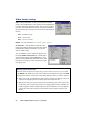
Adjust the settings in the resulting dialog box, then click OK;
If the Va clip starts before the Vb clip, select the From Va to Vb option button.
If the Vb clip starts before the Va clip, select the From Vb to Va option button.
For more information, click Help in the dialog box.
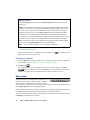
Adding filters or overlays
1
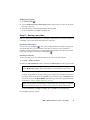
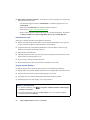
Click the clip you want to apply an effect to.
2
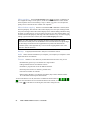
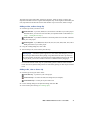
Click the type of effect you want to apply:
Video Filters
Audio Filters
Overlay Options (tracks V1, V2 …)
3
34
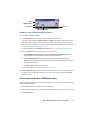
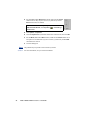
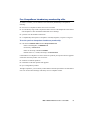
Overlapping clips
with a transition
effect
Adjust the settings in the resulting dialog box, then click OK.
For more information, click Help in the dialog box.
Matrox Rainbow Runner G-Series – User Guide