1
3
Tip: “Microsoft Windows Users Quick Start” and “Video Guide for Microsoft Windows Users” videos
are available for FreeDV. This is an excellent source of help for installing and operating FreeDV and
may be found at freedv.org Take a few minutes to view these before starting the setup.
PC
USB Headset
Radio to PC Interface
Hardware:
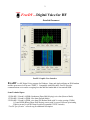
1. Sound card and PTT control setup is the same as other digital modes such as PSK31 except DV
requires a “Gamer” or equivalent USB headset for voice input and output As an alternative to
the headset, a second sound card with its mic/speaker may be used. Like other digital modes, a
Radio to PC interface either homemade or purchased is necessary to provide isolation and relay
control for PTT. To “listen only,” just one sound card is needed. After connecting/installing the
sound devices, identify and locate their associated Windows Mixers and slider controls. Adjust
these to mid-range as a starting point. Keep them handy so they will be easily accessible
throughout the installation. The mic Record mixer adjusts the audio level from the receiver and
the Playback mixer adjusts the audio to the transmitter. If currently using a digital mode such as
PSK31, the transmitter and receiver levels should be relatively close. Equally important is the
mixer slider controls for the USB headset since the mic and headphones will require adjustment.
2. FreeDV for Windows will execute and run on about any home or laptop PC with a dual core or
higher Intel/AMD CPU. Virtual Audio Cables (VAC) commonly used with SDR radios is
compatible. Dependent upon your hardware interface and radio, PTT rig control may be
configured for VOX, Hamlib or a serial port. Flex, HPSDR and other SDRs may use a virtual
com port pair.
Software:
Window files for FreeDV
3. Go to FreeDV.org then under Download, click on Windows binary files and execute the program.
This will install for Windows XP, 7, and 8 software including an uninstall file. The bin folder will