1
Creating a MySonicWALL Account
To create a MySonicWALL account, perform the following
steps:
1.
2.
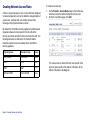
In your browser, navigate to www.mysonicwall.com.
In the login screen, click If you are not a registered user,
Click here.
Registering and Licensing Your Appliance
on MySonicWALL
This section contains the following subsections:
•
•
•
•
Product Registration - page 10
Licensing Security Services and Software - page 11
Managing Licenses - page 11
Registering a Second Appliance as a Backup page 12
Product Registration
You must register your SonicWALL security appliance on
MySonicWALL to enable full functionality.
1.
2.
3.
3.
4.
5.
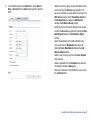
Complete the Registration form and then click Register.
Verify that the information is correct and then click Submit.
In the screen confirming that your account was created,
click Continue.
Page 10 Creating a MySonicWALL Account
4.
Login to your MySonicWALL account. If you do not have an
account, you can create one at www.mysonicwall.com.
On the main page, in the Register A Product field, type
the appliance serial number and then click Next.
On the My Products page, under Add New Product,
type the friendly name for the appliance, select the
Product Group if any, type the authentication code into
the appropriate text boxes, and then click Register.
On the Product Survey page, fill in the requested
information and then click Continue.