1
PocketWizard.com
PocketWizard Utility
Your MultiMAX has a USB port which allows it to be easily updated to the latest
firmware using the PocketWizard Utility. The PocketWizard Utility can be downloaded
on our website at http://www.PocketWizard.com/support/downloads/
To connect your USB-enabled MultiMAX to your computer, please follow these steps:
1.
Turn off the MultiMAX radio and make sure you have fresh batteries installed.
2.
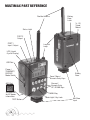
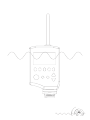
Press and hold the backlight key (located between MENU and TEST) as you turn the MultiMAX on to TRANSMIT.
3.
Note that the STATUS LED blinks steadily and the LCD remains blank. This confirms the radio is in USB mode.
4.
Make sure the PocketWizard Utility is running on your computer and no other PocketWizard radios are connected to it.
5.
Connect your MultiMAX radio to your computer using a standard Mini-B USB cable and note that your MultiMAX radio appears in the
PocketWizard Utility.
6.
To update your radio, click “Check For Updates” in the Maintenance Tab. Most updates require a full factory reset (see the RESET section on Page 29 in your MultiMAX Owner’s Manual). Be sure to write down any special settings like Contact Time, etc., before you update your radio.
Consider updating all the USB-enabled MultiMAX radios in your system to the same
firmware. Older MultiMAX radios that do not have a USB port will continue to work as
part of your MultiMAX system. The older non-USB radios cannot get the new features,
but will still perform their original functions normally when paired with USB-enabled
radios.
xi