1
Using the Control Panel
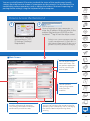
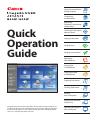
The machine is operated and configured in the control panel. By learning more about the various
names and functions available on the machine, you can use the machine more efficiently.
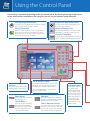
Settings/Registration Key
Brightness Adjustment Dial
Energy Saver Key
Volume Settings Key
Press this key to configure the machine's settings
and to register items on the machine.
You can set the machine to enter sleep mode
when you do not use the machine for a while.
When you want to use the machine again, press
this key to cancel the sleep mode.
Use this dial to adjust the brightness of
the touch panel display.
Press this key to adjust the volume of the
alarm when sending or receiving a fax.
Counter Check Key
Press this key to display the total number of
copies and prints output with the machine.
Touch Panel Display
Edit Pen
The pen used to operate the
control panel is stored here.
Main Menu
Press this button to display
the Main Menu.
Quick Menu
Press this button to display
the Quick Menu buttons
that you have registered to
perform frequently used
setting combinations.
2
By using the touch panel, you can select
functions such as copy and print, and
configure the settings of the machine.
If the desired function is not displayed,
try pressing [Show All].
Shortcut
Press these buttons to switch the
display to another function without
returning to the Main Menu.
Status Monitor/Cancel
You can use this key to confirm the
job status, such as print, send, and
receive jobs. You can also use this
key to pause or cancel a print job.
Indicator Lights
These lights indicate
the status of the
machine. They flash
when a job is being
processed or an error
has occurred, are lit
when the machine's
main power is On,
and are dark when
the machine's main
power is Off.