1
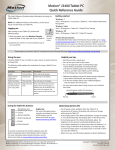
Using the buttons on the front of the J3500
You can use the buttons on the front of the tablet PC to perform many functions without having to use the pen. Press a button to perform
certain actions. Press and hold a button to perform a different set of actions.
Press
microphone and ambient light sensor
Press and hold
Triggers built-in
Opens Windows photo
camera to take a photo gallery
Camera shutter
Motion QuickNav
Motion Dashboard
Escape
Starts Motion
QuickNav
Opens Motion QuickNav
Voice Recorder
Starts Motion
Dashboard
Opens Windows Journal™
Turns off the display
Cancels the current task
Equivalent to the Esc key
Directional pad
Customizing front panel buttons
Use to move the pointer or navigate through
documents. Equivalent to arrow keys on a keyboard. The center button is equivalent to Enter.
As you become more familiar with your J3500, you may want to
customize the buttons on the front panel. For example, you can
configure the buttons to start your favorite program, run a
command or enter a key combination.
Using speech recognition
You can use speech recognition to interact with your tablet
PC by voice. Say a voice command, for example, to select an
item, open a file, scroll, select, correct or delete a word and
much more.
Before you can use speech recognition, you must configure
the microphones and train the system for the characteristics
of your voice.
To train your computer to recognize your speech
1. In Control Panel, tap the Ease of Access category, then tap
Speech Recognition.
Also, take the Speech Tutorial to learn about all that you can
do with speech recognition.
To take the speech tutorial
1. In Control Panel, tap the Ease of Access category, then tap
Speech Recognition.
2. Tap Take Speech Tutorial.
For more information about speech recognition, search
Windows Help and Support for “speech recognition.”
2. Tap Train your computer to better understand you.
2
Model T008
J3500 Getting Started