1
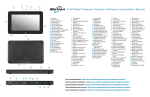
Using the LED function buttons on the front of the R12
The LED function buttons on the front of the Tablet PC enable you to perform many functions without having to use the pen.
Press a function button to perform certain actions. To perform a different set of actions, press and hold the function button.
These actions are listed in the table below. You can also customize the buttons to perform actions that suit your needs.
Button 1
Press
Press and hold
Button 1
Motion Tablet Center
Windows® Journal™
Button 2
Motion SnapWorks
Pictures directory
Button 3
Tablet PC Settings or Barcode reader On-screen keyboard
(if equipped with SlateMate™)
Button 2
Button 3
Checking battery power
You can check the remaining battery power by:
•• From the Windows® 8.1 Start Screen, swipe from the right
side of the screen to display the Charms menu and the
battery power indicator appears on the screen.
•• From the Windows Notification area, tap the
power indicator, which changes appearance depending
on whether the Tablet PC is plugged in or running
on battery.
– If the Tablet PC is plugged in, tap the plug icon.
– If it is on battery power, tap the battery icon.
The five lights on the back of the Tablet PC’s battery also
indicate the battery’s current level of charge—from one
green light (20% charged) to five green lights (fully
charged). Press the button to the right of the lights to
view the remaining charge level.
R12 Getting Started
Battery charge
indicator lights
Model R001
Press to view charge
indicator lights
2