1
Tips
Learn more
Make the most of your CL920 by following these tips.
Pen and Touch tips
•• You can change from right- to left-handed use. From
Motion Tablet Center, tap Tablet PC Settings, tap the
Other tab, then tap Left-handed.
Caution • Attention • Achtung • Precaución • Precaución
•• You can open items with one tap (instead of two) and
select an item by pointing to it. From the Control Panel,
tap Folder Options, then tap Single-click to open an
item (point to select).
General tips
•• Use only the CL920 digitizer pen or your finger on the
display. The Tablet PC doesn’t respond to any other type
of pen or stylus.
•• When attaching the pen tether, slip one end of the tether
through the hole at the end of the pen and pull the pen
through the loop until it’s tight. Then slip the other end
of the tether through the attach point and pull the pen
through the loop until it’s tight.
•• Read the Safety and Regulatory Guide before starting the
tablet.
•• Veuillez lire le Guide des conseils de sécurité et réglementations
avant de démarrer la tablette.
•• Lesen Sie vor Inbetriebnahme des Tablet PC das Sicherheitsund Vorschriftshandbuch.
•• Lea la Guía de seguridad y normativa antes de empezar a utilizar
el tablet.
•• Leia o Guia Regulatório e de Segurança antes de ligar o tablet.
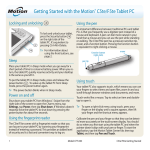
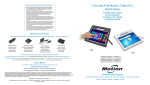
•• Store the pen in the pen storage bay when not in use. To
store the pen, press the pen release button and insert it
into the pen storage bay, tip down. To remove the pen,
press the pen release button and pull the pen upward
and out from the storage bay.
To get more detailed information on your
Tablet PC, go to the CL920 User’s Guide,
which is available here:
http://www.motioncomputing.com/us/
support/userdocs.
In addition to our documentation, you can
get the following information from
our website:
••  Motion Support
••  Motion Knowledge Base
••  Free online training videos
••  CL920 accessories
••  Software for the CL920 Tablet PC
•• Clean fingerprints and smudges from the display surface
by wiping it with the display cloth provided.
•• You can find the serial number of your CL920 in Motion
Tablet Center on the Tablet screen.
For more accessories, go to http://www.motioncomputing.com/us/products/rugged-tablets/CL920#accessories
Pour davantage d’accessoires, rendez-vous sur http://www.motioncomputing.com/fr/products/rugged-tablets/CL920#prod_acc
Weitere Informationen zum Zubehör erhalten Sie hier http://www.motioncomputing.com/de/products/rugged-tablets/CL920#prod_acc
Para obtener más información sobre accesorios, visite http://www.motioncomputing.com/es/products/rugged-tablets/CL920#prod_acc
Para obter mais informações sobre acessórios, acesse http://www.motioncomputing.com/pt/products/rugged-tablets/CL920#prod_acc
Copyright © 2014 Motion Computing, Inc. All rights reserved. Motion Computing and Motion are registered trademarks of Motion Computing, Inc. in the United States and other countries.
All other trademarks are properties of their respective owners. Microsoft, Windows, and Windows Journal are trademarks or registered trademarks of Microsoft Corporation in the United
States and/or other countries.
PN 024-02-0490-A01
CL920 Quick Setup and Getting Started Guide
Model FWS-002
5