1
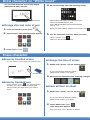
Add new sheet
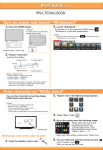
・Touch “Add” icon
on “Tool bar” in bottom ,
then you can add new sheet.
●Change sheet by dragging display
・Touch “View” icon
on “Square menu”
and drag display to right or left (with keeping touch),
then you can change sheet.
・Touch ”Page” icon
,
then you can move sheet, previous and next.
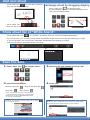
Show sheet list of “White board”.
・Touch “Sheet list” icon
on “Tool bar” in bottom, then you can see thumbnail each sheet.
・If you touch once, you can see up to 8 sheets’ thumbnails at the bottom of screen like following (a) image.
If you touch again, you can see max. 48 sheets’ thumbnails like following (b) image
and you can move to the sheet where you touch.
(a)
(b)
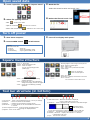
Save the data
1. Touch “Save” icon
on “Square menu”.
2. Select the save method.
・Save as a new file:
・Save PDF:
3. Select the file save location and touch “OK”.
4. Touch “OK”.
・Save to the same file:
・Save image:
*”Save as a new file” and “Save to the same file”,
it save as SWSX format and you can build again.
*”Save image”, it save as BMP/JPEG/PNG format
so you can not build again.
[Notice]
Format of “Save as image” is set by “sheet” tab on setting
of “Tool bar” in bottom
[Notice]
When you want to change file name, software key board appear
by touching file name space and then you can change it
3