1
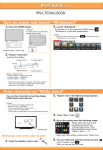
Draw character on “White board”
You can draw character by touching display
(White board area) with pen.
Bundled pen
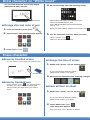
●Change size and color of pen
1. Touch the indicator (menu icon) .
2. “Square menu” like following image appears.
4. Set on the setting menu like following image.
・Please select the kind of pen (Standard pen
/Brush pen/Marker/Figure pen),
Color (Black/Red/Blue/Green/Yellow/White),
Size(1~5).
・When you finish setting, please touch “Close” icon.
5. You can create size and color which you want .
・Touch “Custom” icon
,
Then you can set size and color.
3. Touch “Pen1” icon.
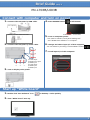
Erase character
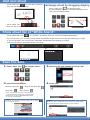
●Erase by bundled eraser
・You can erase by moving softly with bundled eraser.
●Change the size of eraser
1. Double click “Eraser” icon on “Square menu”.
Bundled eraser
・If you have already selected “eraser”,
please touch “Eraser” icon again.
2. Select the size and touch from following 4 images.
●Erase by bundled pen
・Touch “Eraser” icon
on “Square menu”,
and then you can erase by touching (like
moving softly) the area which you want to
erase.
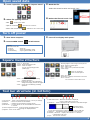
●Erase all item on sheet
1. Double click “Eraser” icon on “Square menu”.
・If you have already selected “eraser”,
please touch “Eraser” icon again.
2. Touch “Sheet clear” icon
,
then dialog box appears.
・Once you touch “Yes”, all item is cleared.
2