1
3
Press X/x to select the network setting
type, then press
.
4
Press X/x to select the proxy server
setting, then press
.
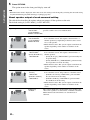
When connecting to the
wireless LAN with the system’s
built-in Wi-Fi or the USB
Wireless LAN Adapter
Follow the Steps below for connecting to a
wireless LAN (Local Area Network).
When your wireless router is
compatible with the WPS
function
1
2
3
4
The system starts checking the network
connection.
7
Check that the message [Wi-Fi
Protected Setup was successful.]
appears, then press c.
When your wireless router is not
compatible with the WPS
function
1
Check that the message [Internet
Settings is now complete.] appears,
then press
.
The setup is finished. If the message does
not appear, follow the on-screen messages.
Activate the WPS function of your
wireless router, press X/x to select
[Start], then press
.
Setup of wireless LAN connectivity and the
IP address is finished.
Next, enter the proxy server setting. Follow
Steps 4 to 7 of “Manual setting” in “When
connecting to the LAN with a LAN cable”
above.
Press c.
Press X/x to select [Save & Connect],
then press
.
Press X/x to select [Wi-Fi Protected
Setup (WPS)], then press
.
For details about activating the WPS
function, see the operating instructions of
your router.
• [No]: A proxy server is not used.
• [Yes]: Enter the proxy server setting.
Press C/X/x/c and the number buttons,
then press
.
The value of the internet settings appears on
the TV screen.
5
6
Press X/x to select [Wireless
Setup(built-in)] or [USB Wireless
Setup] on the [Internet Settings]
display, then press
.
Other Operations
• [Auto]: The system sets the IP address
automatically, and the [DNS Settings]
display appears.
When you select [Auto] and press
, the
system sets the DNS setting
automatically.
When you select [Specify IP address] and
press
, enter the DNS settings
manually.
Press C/X/x/c and the number buttons to
set the following items, then press
.
– [Primary DNS]
– [Secondary DNS]
• [Specify IP address]: Enter the network
settings manually according to your
network environment.
Press C/X/x/c and the number buttons to
set the following items, then press
.
– [IP Address]
– [Subnet Mask]
– [Default Gateway]
– [Primary DNS]
– [Secondary DNS]
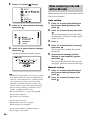
2
Press X/x to select [Wireless
Setup(built-in)] or [USB Wireless
Setup] on the [Internet Settings]
display, then press
.
Press X/x to select [Scan], then press
.
The system searches for available wireless
LANs, then the list of wireless LANs
appears.
57US