1
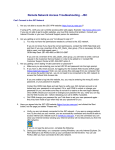
Your token may be locked, or you may need a token PIN reset. Contact the Enterprise Service Desk (ESD) at 281-483-4800, option 4. 4. Have you signed into the WSTF VPN website (https://vpn.wstf.jsc.nasa.gov) and clicked the Start button, but the page just states "Please wait..."? . Verify you are not already connected to the WSTF network. If you see a yellow padlock icon by the clock on your monitor, you are successfully connected and should be able to access internal WSTF website such as http://www1.wstf.nasa.gov/. If you are connected, you can close your internet browser window. (Note: Closing your internet browser window will not disconnect you from the WSTF network.) If you do not see the padlock icon, continue to the next step. a. During your initial setup, use only Internet Explorer (or Safari on Mac). Do NOT attempt to use Firefox to set up your connection for the first time. You can use Firefox after you have connected to the WSTF network. b. In order for the Network Connect software to install properly, it is necessary for you to disable all pop-up blockers the first time you log into this site on a given machine. You must also disable the pop-up blockers that are included with any toolbar software (Google toolbar, Yahoo! toolbar, Earthlink toolbar, etc.), and the pop-up blocker in Internet Explorer* or Safari**, as well as any pop-up blockers that may be running in your Windows System Tray by the clock on your monitor. *To disable the pop-up blocker in Internet Explorer, click the Tools menu, then click Popup Blocker. If you see "Turn Off Pop-up Blocker", click it, otherwise, the blocker is already disabled. If you do not see "Pop-up Blocker" under the Tools menu, you are not running the version that includes the pop-up blocker. c. d. **To disable the pop-up blocker in Safari, click the Safari menu, and make sure "Block Pop-Up Windows" is unchecked. Go to the WSTF VPN website again (https://vpn.wstf.jsc.nasa.gov) and sign in with your NDC ID and password. After clicking the Sign In button, look for the Microsoft Information Bar just below the Address Bar in your browser. If the Information Bar appears, you will need to click on it and allow ActiveX to be installed. Once the Start button appears, click it to launch your connection. You should get several pop-up windows asking you to accept the download of software and/or certificates, etc. Accept ALL pop-up windows (click the "Allow" option: Yes, Run, or Allow, etc.). After clicking the Start button on the VPN website, it should only take 1-2 minutes for the Network Connect software to be configured and for you to be connected to the WSTF network. It may take longer if you have an slower computer, but it should not take more than 5 minutes. e. If it appears to be stuck on a particular pop-up message, try moving that message to see if another message popped up behind it and is waiting for you to respond to it.