1
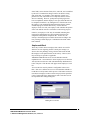
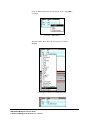
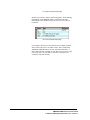
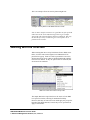
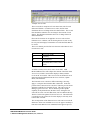
Another method is also configurable in the Access table. When a “drill down” filter is created for the Activity dataset that filter is specified in the Timecard access code, the Find Existing... option will be appended to the end of the user’s task list. Selecting Find Existing... allows a user to select a new task by choosing categories from successive popups down to the detail task level, whether they are planned to work on that task or not. For example, the user could select a task by first selecting the Project, then the Phase, and then the Task description from popup lists. Even if he was not planned to work on that task, he could then post his time. Of course, unplanned work can still be subjected to the Approval process for validation. Alternatively, WBS source tables can be defined which allow hierarchical task selection through a series of pre-defined choices. Plan Plan mode is typically used by managers when determining which employees will be assigned to work on each task. The employee must be part of the planned work on a task in order for that Task ID to appear in their popup when posting time worked. If the Plan function is grayed out, then the currently logged in user does not have the required access level to plan work. Note: If Planning and Resource assignments have already been created in AMS REALTIME Projects, this plan information can be automatically loaded using the AMS REALTIME Resources interface. This information exchange is launched from the AMS REALTIME Projects File Execute menu. When Plan is selected, the information line will now display Work Planned on followed by a Task ID button. Clicking on the Task ID button will produce a list of activities which are currently in the Activity dataset. To change the task selection, click on the desired activity. The current activity selection will always be displayed in the TaskID button. The information line also provides a Previous and Next button. Clicking on the Previous button will select the previous activity for planning, and clicking on the Next button will move you to the next activity in the list for planning. Using these buttons to perform resource planning on a series of activities helps to ensure that no tasks are inadvertently passed over. The last button is labeled Activity Filter, and allows selection of a predefined Activity matching filter. Selecting an activity filter allows you to limit what appears in the popup by showing only those that match the specific criteria from the filter. The current activity filter is always displayed in the Activity Filter button. Resource Availability When planning the resource assignments for activities, a list of resources will appear below next to the calendar. If the configuration switch Planavail is set to Y, each resource will have 54 AMS REALTIME Resources User Guide Advanced Management Solutions, Inc., Issue 1.1