1
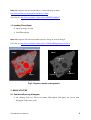
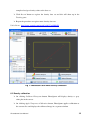
 On clicking Running Histogram button, PhaseQuant will update the canvas with
histogram of the current slice and will continue to refresh the canvas as the current
displayed slice is changed in the stack window.
Video Demo: http://www.youtube.com/watch?v=9WDfj9EvDXM&feature=related
2.2 Update histogram
Existing utilities in ImageJ such as smoothing and sharpening filters can be applied to
the image stack while PhaseQuant is in operation
Changes made by external utilities can be registered to PhaseQuant by clicking
Update Histogram button in the toolbar
Video Demo: http://www.youtube.com/watch?v=dBXlBbSJrAs&feature=related
2.3 Manual segmentation
This utility is used for segmenting the stack or image into multiple regions based on
thresholds.
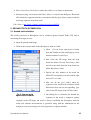
Click Segment Histogram button and subsequently, Threshold Bars will shown up on
the histogram in the canvas
Dragging the Threshold Bars will change the upper and lower thresholds and the
corresponding region in the stack/image is highlighted with a unique colour map. The
threshold values will be displayed in the Threshold Display textbox in the Region of
Interest (ROI) pane
A new region can be added to the PhaseQuant by pressing the Add Region
button at
the bottom of the ROI pane
The new region will show up as ROI pane titled New Segment and can be renamed by
clicking on the region or deleted by clicking Delete Region
button
Video Demo: http://www.youtube.com/watch?v=stRVcCFTDMs&feature=related
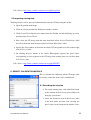
2.4 Recording training sequence
PhaseQuant User Manual
3