1
Select an object by its name
4.3. Select an object by its name
In order to help the user to find an object whose name
(s)he knows, Macao interprets keystrokes as selectors of
object names. Pressing a, for example, selects all the
objects beginning with the letter a. You cannot however be
in text input mode. Macao sets a timer on keystrokes:
keystrokes in rapid succession form a string; keystrokes
spaced in time are processed separately. Macao produces
a beep as soon as the user types an object’s full name.
4.4. Dispatch
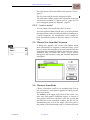
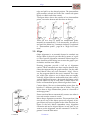
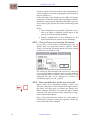
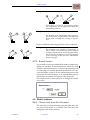
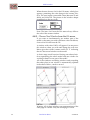
If you select a set of nodes that are vertically or horizontally aligned and choose Dispatch from the Edit menu, all
the nodes will be dispatched regularly from the top to the
bottom (or from the left to the right). Sometimes the dispatch won’t be exactly what you expected because the
nodes will be placed on the magnetic grid.
4.5. Modify the look of nodes
4.5.1. Modify the type of a node
Every object in a formalism has an aesthetic part. For
example, the aesthetic part consists of the object size or the
default position of the textual attribute.
The user can modify the size as well as the visualization
position of each of the attribute at his or her convenience.
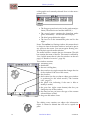
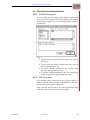
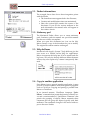
Using the mouse, position the cursor on the object in the
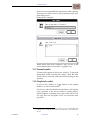
toolbox that you want to modify. Double click. A dialog
box will appear titled Object Information.
The modification of the aesthetic part of the formalism is
completely intuitive because Macao gives you the picture
of the object and all of its attributes in their default position in one window. The user simply selects the attributes
© 1988-96
Version 2.6
21