1
Using Integrated Program Modeling
•
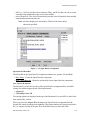
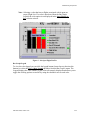
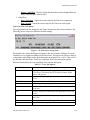
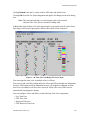
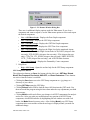
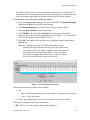
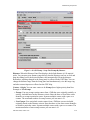
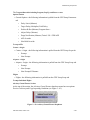
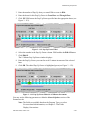
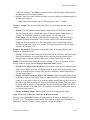
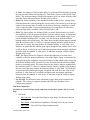
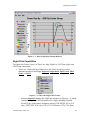
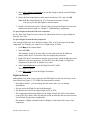
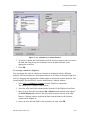
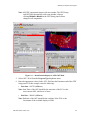
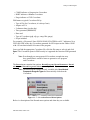
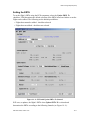
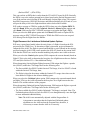
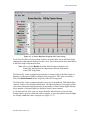
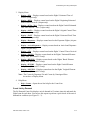
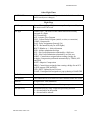
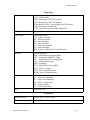
Scope – 400 nm
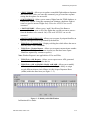
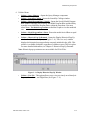
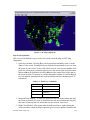
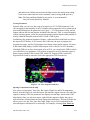
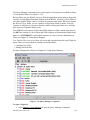
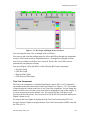
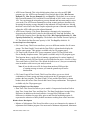
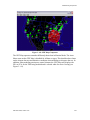
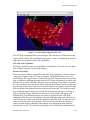
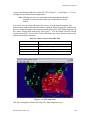
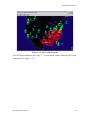
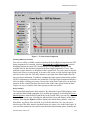
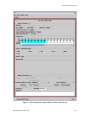
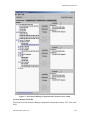
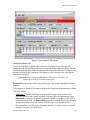
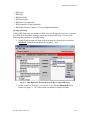
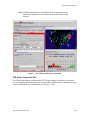
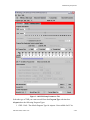
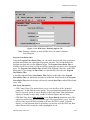
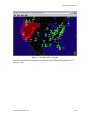
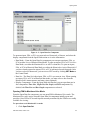
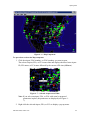
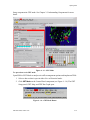
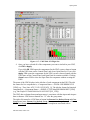
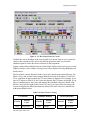
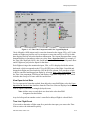
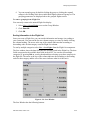
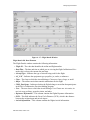
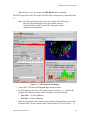
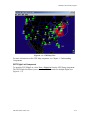
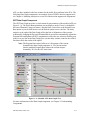
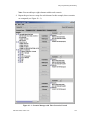
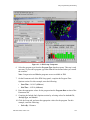
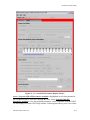
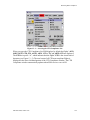
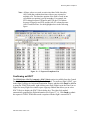
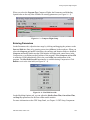
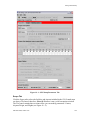
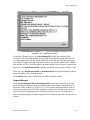
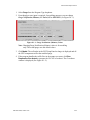
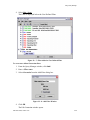
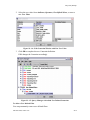
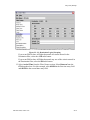
Note: Any changes you make to the IPM Map are dynamically
reflected in the IPM Setup component’s Scope tab.
11. Click Scenario Mgr to close the IPM Setup components and return to the Scenario
Manager component. Continue to change the parameters for each Model element
in each scenario.
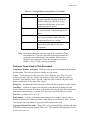
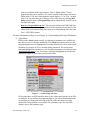
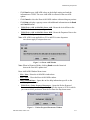
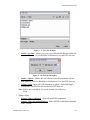
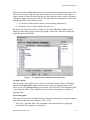
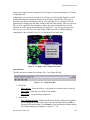
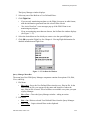
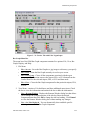
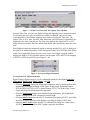
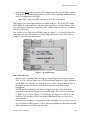
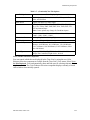
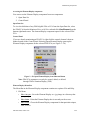
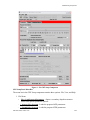
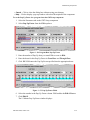
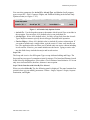
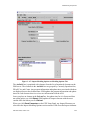
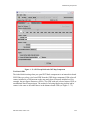
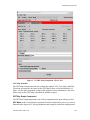
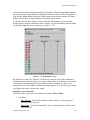
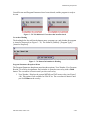
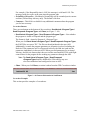
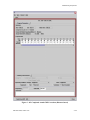
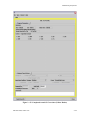
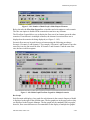
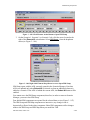
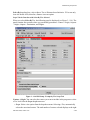
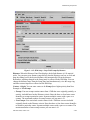
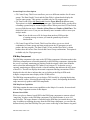
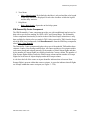
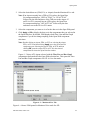
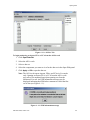
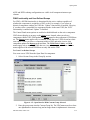
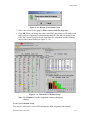
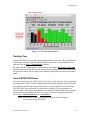
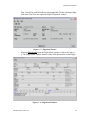
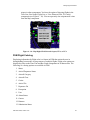
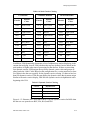
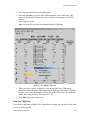
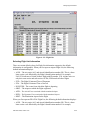
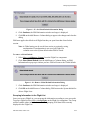
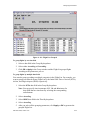
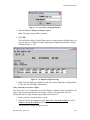
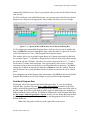
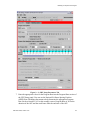
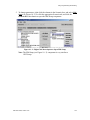
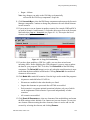
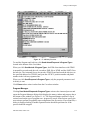
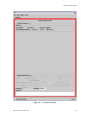
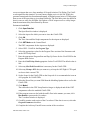
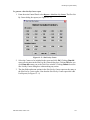
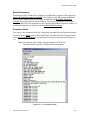
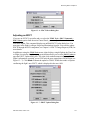
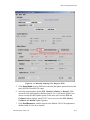
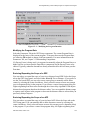
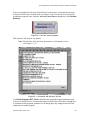
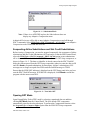
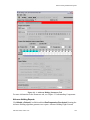
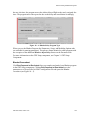
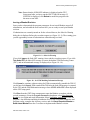
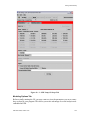
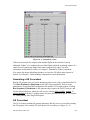
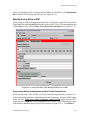
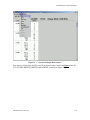
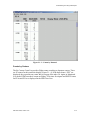
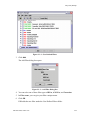
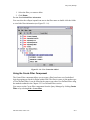
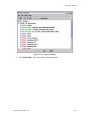
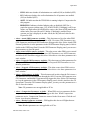
12. If you want to re-use an element in another scenario (for example, BWI and DCA
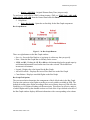
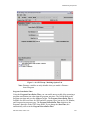
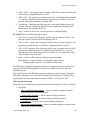
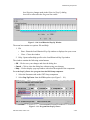
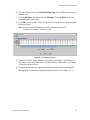
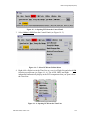
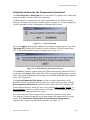
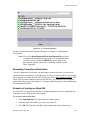
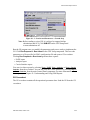
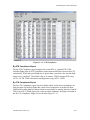
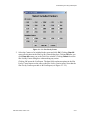
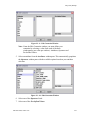
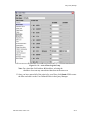
are used in Scenario 1 and Scenario 2). Select the down arrow next to the Scenario
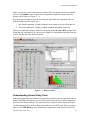
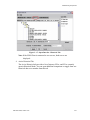
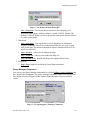
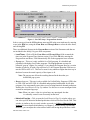
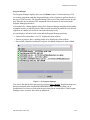
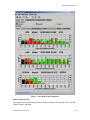
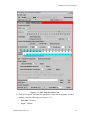
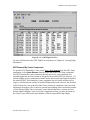
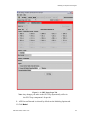
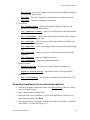
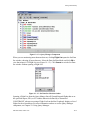
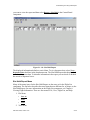
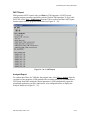
label and select Copy to > Scenario 2 (see Figure 10 - 4). This copies the list of
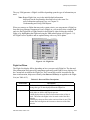
elements and all parameters to Scenario 2.
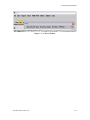
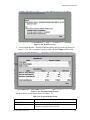
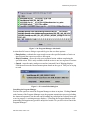
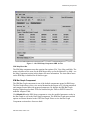
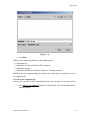
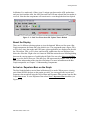
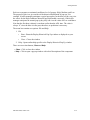
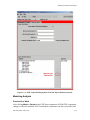
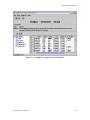
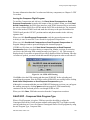
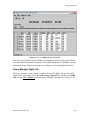
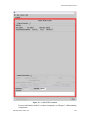
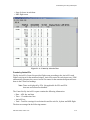
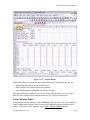
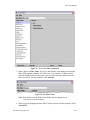
Figure 10 - 4 : Copy To Functionality
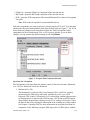
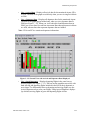
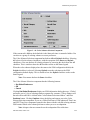
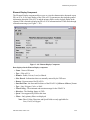
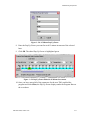
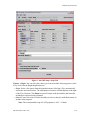
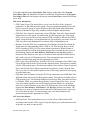
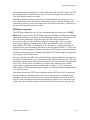
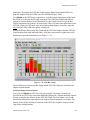
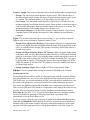
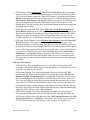
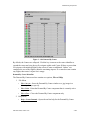
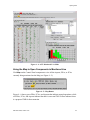
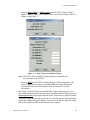
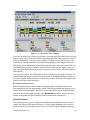
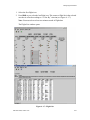
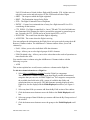
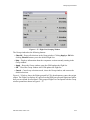
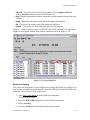
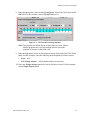
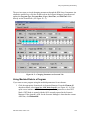
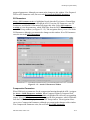
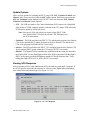
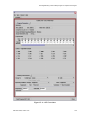
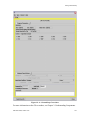
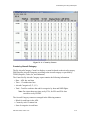
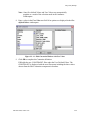
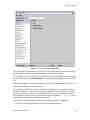
13. If you have been modeling a GDP for a while, you may have missed some
incoming ADLs. Before modeling the GDP parameters, you may want to update
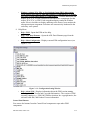
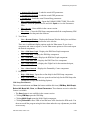
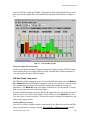
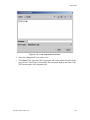
the data for your proposed TMI. To do this, click Reload All on the IPM Setup
component. The Reload All button is active only when the actual data time is more
recent than the data available in IPM mode. Clicking Reload All also models all
elements in all scenarios.
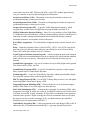
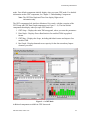
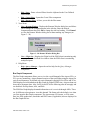
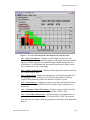
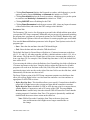
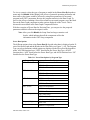
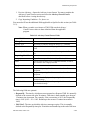
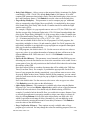
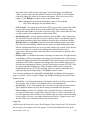
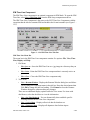
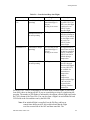
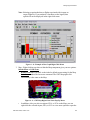
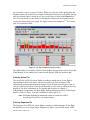
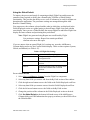
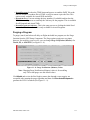
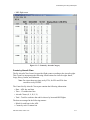
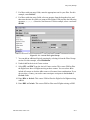
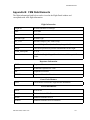
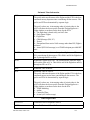
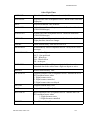
14. Click Model All to model all scenarios. Note the logic used to model the programs:
•
Airports are modeled before FCA/FEAs.
•
Elements are modeled in the order that they are listed.
•
Impact data elements are processed after all TMIs are modeled.
•
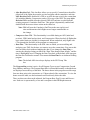
Each scenario is a separate optional operational solution, only one of which
can be implemented. Each scenario is processed independently of other
scenarios.
•
All scenarios are modeled.
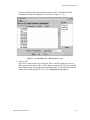
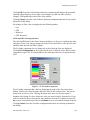
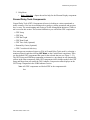
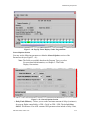
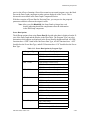
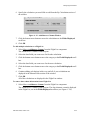
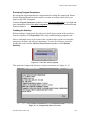
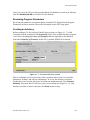
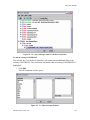
15. Click Reset All Parameters to clear any elements of the modeled data, and return
the IPM settings to their defaults. You cannot reset just one element. To reset just
one element without resetting the other elements, remove it and re-add it to the
scenario by selecting the element, and clicking Remove.
FSM User Guide, Version 9.00
10-5