1
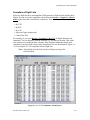
Viewing Flight Information
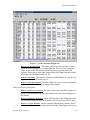
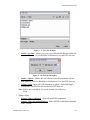
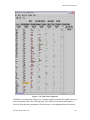
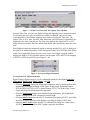
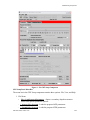
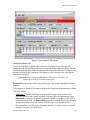
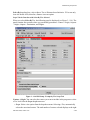
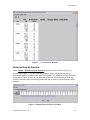
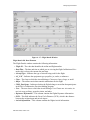
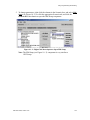
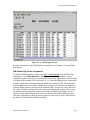
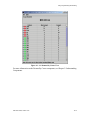
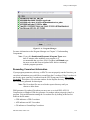
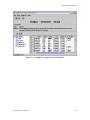
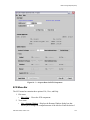
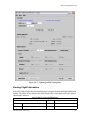
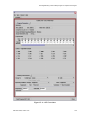
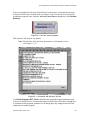
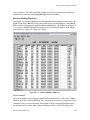
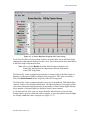
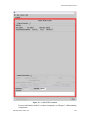
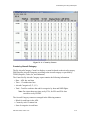
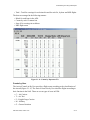
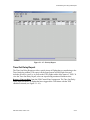
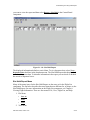
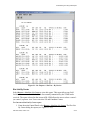
Flight List Menu
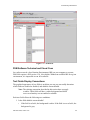
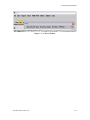
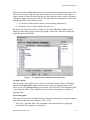
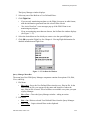
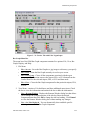
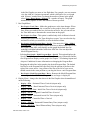
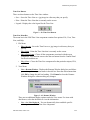
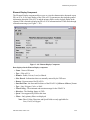
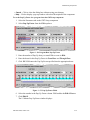
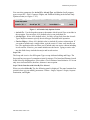
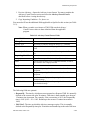
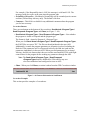
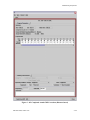
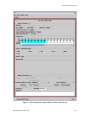
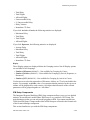
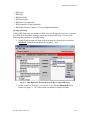
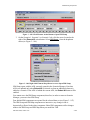
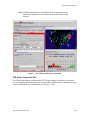
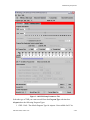
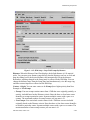
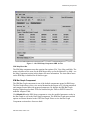
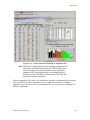
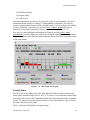
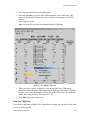
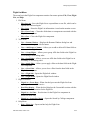
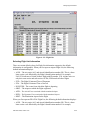
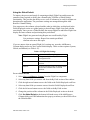
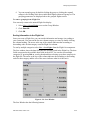
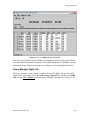
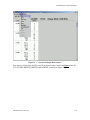
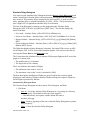
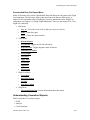
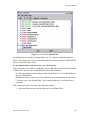
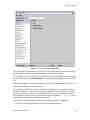
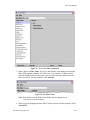
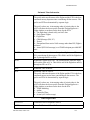
The menu bar in the Flight List component contains four menu options: File, View, Flight
List, and Help.
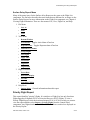
1. File Menu
•
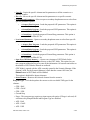
File > Save As - Saves the Flight List to a spreadsheet or text file, which can be
opened later and used again.
•
File > Print – Prints the Flight List information viewed on the monitor screen.
•
File > Close Group – Closes the all the data set components associated with the
Flight List component.
•
File > Close - Closes the Flight List component.
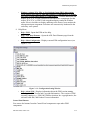
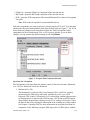
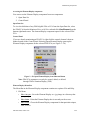
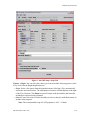
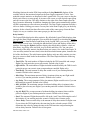
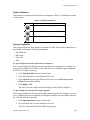
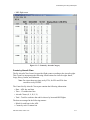
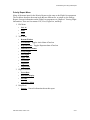
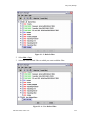
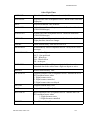
2. View Menu
•
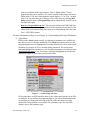
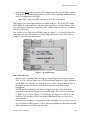
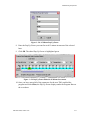
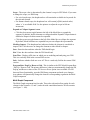
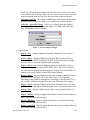
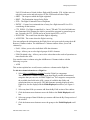
View > Rename Window – Displays the Rename Window dialog box and
allows you to change the title bar name.
•
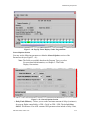
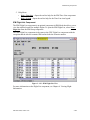
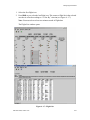
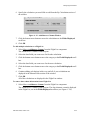
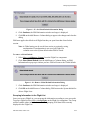
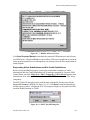
View > Add/Remove Columns – Allows you to add or delete ADL data fields as
columns to the Flight List.
•
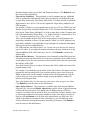
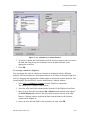
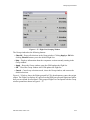
View > Group Flights – Allows you to group ADL data fields to the Flight List
in ascending or descending order.
•
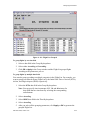
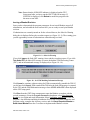
View > Sort Flights – Allows you to sort ADL data fields to the Flight List in
ascending or descending order.
•
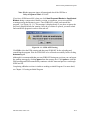
View > Apply Filter – Allows you to apply a filter to the data fields in the Flight
List component.
•
View > Clear Filter – Allows you to clear a filter from the data fields in the
Flight List component.
•
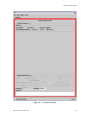
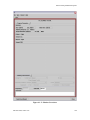
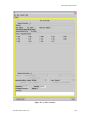
View > Flight Info - Opens the Flight Info window.
•
View > Flight Detail - Opens the Flight Detail window.
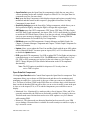
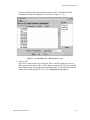
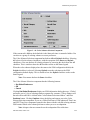
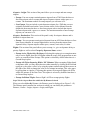
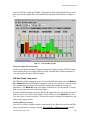
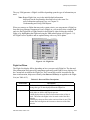
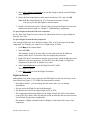
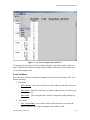
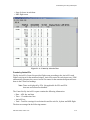
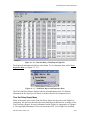
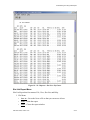
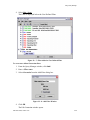
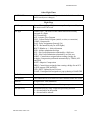
3. Flight List Menu
•
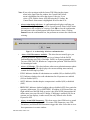
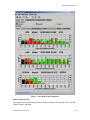
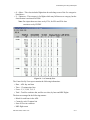
Flight List > Freeze Data – When checked, prevents the Flight List from
updating when new ADLs arrive.
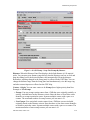
•
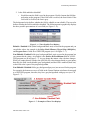
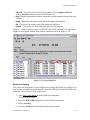
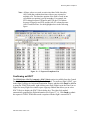
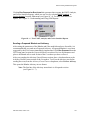
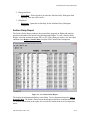
Data/Filter Display – When checked, displays the Current Info section with the
Data and Filter information for the flight list.
•
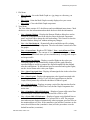
Flight List > Set Time – Sets the time for the Flight List component in
Historical mode only.
•
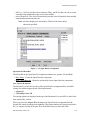
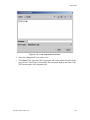
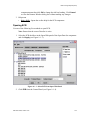
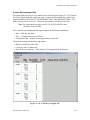
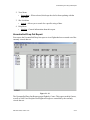
Flight List > Search By Callsign – Opens the Search by Callsign component.
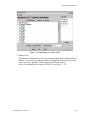
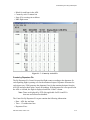
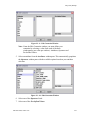
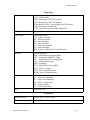
4. Help Menu
•
Help > Flight List – Opens on-line help for Flight Lists.
FSM User Guide, Version 9.00
6-25