1
2
BASIC FUNCTIONS
The following sections show you how to use the basic functions in the webmap. Because
of the scope and variety of available data, it can take some time to get used to the way it
works and display the information you want to see. It is worth reading this guidance as an
introduction, and exploring the map yourself to work out how you best want to use it.
2.1
Format
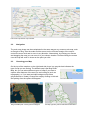
When you go to the map web page for the first time, you will see a basic map with two
parts to it. On the right is the main map image which displays what selections you have
made in the map controller on the left hand side. The map controller appears as a
column with text, containing a series of headings, options and boxes. By ticking, unticking
or filling in the boxes you can call up or remove different types of
data (e.g. churches, areas, boundaries) and so control what is
displayed on the main map image.
On start-up, the main map image will display a simple map
covering most of Britain, marked with Methodist District
boundaries. On the left you will see that the site has selected for
you the Methodist Boundaries option, and within this the
Methodist Districts option. No other data is shown at this stage.
From here you can use the various functions on the left hand side
to explore the map, or zoom and drag the map in the map box itself.
2.1.1
Transparency function
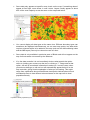
At the top of the map controller you will find a moveable bar
for Transparency. The value is set to 20, but the further right
you move this bar (i.e. the closer to 100), the more
transparent the data displayed at that time will become.
This is especially useful when activating data layers such as those shown in section 3.1.
2.1.2
Full screen function & hiding the map controller
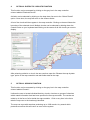
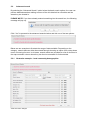
Clicking on the green icon in the top right corner of the map image will
expand the map.
You can return to the main website by clicking the Back to main website link above the
display.
Depending on the device you are using, the map will either cover your whole screen or a
large part of it.
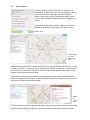
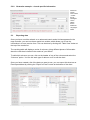
The map controller can be hidden by clicking
the arrow sign on top of the map controller.
Clicking the arrow sign again will unhide it.