1
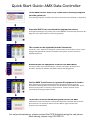
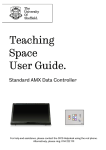
Quick Start Guide: AMX Data Controller
Touch AMX Panel to wake it up. Follow the on screen prompts to
turn the system on.
The teaching computer, located in the lectern, will need to be switched on separately.
Press the ‘DATA’ icon, and touch the appropriate source
If using the teaching PC, log in with your normal (MUSE) username and password. See
Page 3 for more information on connecting a laptop.
The volume can be adjusted from the Volume tab
Touch the + and - buttons to change the volume levels. PC and Laptop volume can be
changed using the DATA controls. If available, microphone volume can also be
adjusted from here.
Access further AV equipment from the Left Hand Menu
This may include a DVD / Blu Ray player, cassette / CD player, AUX input and
Visualiser. Equipment available may differ between teaching spaces.
Use the AMX Touch Screen to operate AV equipment in lectern
After selecting, the appropriate AV equipment (located in lectern) must be
switched on manually. Once switched on, use the buttons on the AMX Panel. These
buttons work just like an ordinary remote control. Further controls can be
accessed by touching the ‘More’ button.
Touch EXIT & choose Shutdown System to turn off AMX
Follow the on screen prompts to confirm the shutdown command. Shut down the
PC as normal. You will not be able to turn the AMX on again until the data
projector has cooled down.
For help and assistance, please contact the CiCS Helpdesk using the red phone.
Alternatively, please ring: 0114 222 1111