1
Frequently Asked Questions
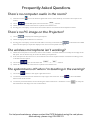
There’s no computer audio in the room?
1)
Click the Volume
muted.
icon in the bottom right hand corner of the desktop, and ensure the output is not
DATA 2) Touch
on the AMX panel, and increase the
channel.
3) Check all of the AV units in the lectern cupboard are switched on.
4) If using your own laptop, ensure the 3.5mm audio cable is connected to the headphone socket
There’s no PC image on the Projector?
1)
Touch
to display the Teaching Computer.
2) Check the Sympodium Monitor is turned on.
3) If using your own laptop, ensure the VGA cable is securely connected, and
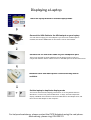
Panel. Put the laptop in duplicate display mode; for more info please see Page 3.
is selected on the AMX
The wireless microphone isn’t working?
1)
Check the microphone is turned on, and not set to ‘Mute’. The Mute button is normally on the edge of the
Mic pack. The On button may be under the battery compartment.
2) If the microphone does not turn on, the batteries need to be replaced. Please contact the building porter,
or AV Services for spares.
LAPEL MIC 3) Touch the
icon, and increase the
or
channel.
4) Check all of the AV units in the lectern cupboard are switched on.
The system turns off when I’m teaching in the evening?
1)
Touch the
button in the upper right hand corner.
2) You will be presented a screen with three ‘Help’ logos, and some text. Touch
hand corner of the screen.
in the TOP RIGHT
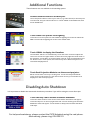
3) You will be presented with a screen showing the status of the Auto - Shutdown. Touch
Auto Shutdown. See Page 4 for more information.
to delay the
For help and assistance, please contact the CiCS Helpdesk using the red phone.
Alternatively, please ring: 0114 222 1111