1
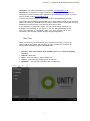
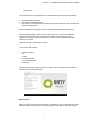
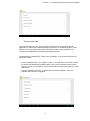
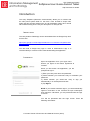
Version 1.0 Softphone User Guide for Android Tablet Username: Your LSE email address. For example: A.N.Other@lse.ac.uk Password: Your Telephony Toolbar password. This will have been emailed to you directly by the Telecoms team upon migration to the new telephony system. If you are unsure, please contact telecoms@lse.ac.uk You may also select remember password and sign in automatically if you wish. Please note that remember password and sign in automatically should only be selected where you protect your Android device by using a security code, to reduce the chance of fraudulent use of the service in the event of phone loss or theft. If your password is particularly cryptic, you can tick the Show password box to display your password as you type it in. The box will automatically un-tick once the password is completed. When you have entered all of your information, click the Sign In button to begin using the application. MAIN TABS When you start Unity for the first time, your Contacts list is empty. You use the search field to find people and add them to your Contacts list. Contacts can also be added manually by tapping the Add button. Contacts – View your contacts from a Buddies list, or from a local or company directory. Dial Pad – Make calls. Chat* – View chat history. (Not available yet) History – View incoming, outgoing, and missed calls. My Room* – Join your personal room (Not available yet) 2