1
SPAM Protection
171
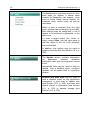
Allow all – lowest sensitivity level. Only email that contains phrases from the
phrase black list, or senders listed on the address black list, are marked as
spam. At this level, email is only processed using the black list, and all other
features all disabled.
By default, Anti-Spam is set to the Recommended sensitivity level. You can
boost or reduce the level or edit the settings for the current level.
To modify the level of sensitivity:
In the Sensitivity section, move the slider up or down to the required
setting. By adjusting the sensitivity level, you define the correlation
between spam, potential spam, and accepted email factors (see 13.3.3
on pg. 177).
To modify the settings for the current sensitivity level:
1.
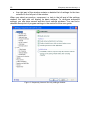
Open the application settings window and select Anti-Spam under
Protection.
2.
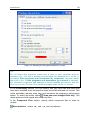
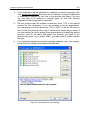
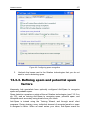
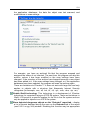
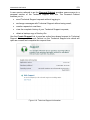
Click on Customize under Sensitivity (cf. Figure 59).
3.
Edit spam protection parameters in the resulting window and click OK.
As a result, the sensitivity level will be user customized.
13.2. Training Anti-Spam
Anti-Spam comes with a pre-installed email database containing fifty spam
samples. You are advised to give the Anti-Spam module further training on your
own emails.
There are several approaches to training Anti-Spam:
•
Use the Training Wizard (see 13.2.1 on pg. 172)
•
Train Anti-Spam with outgoing emails (see 13.2.2 on pg. 172)
•
Train directly while working with email (see 13.2.3 on pg. 173), using
special buttons in the email client tools panel or menu items
•
Training in Anti-Spam reports (see 13.2.4 on pg. 174)
The best method is to use the Training Wizard from the very onset of using AntiSpam, as it can train Anti-Spam on a large number of emails.
Note that you cannot train Anti-Spam with more than 50 emails per folder. If
there are more emails in the folder, the program will use fifty for training.