1
Introduction
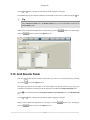
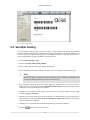
Use the
and
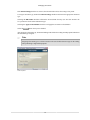
icons to change the order that the fields will appear on the screen.
The administrator may have defined a default set of fields that you can remove, if desired, using the
icon.
Tip
Select Add Capture/Edit Fields below the Search Fields box to save time and add the fields
designated as capture fields.
When you have finished selecting fields for a document type, select the
Select the
button to save the changes.
button to return to the Options screen.
User Search Fields
5.8. PIN
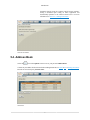
Define your personal identification number by selecting the
icon in the Options screen.
Your PIN will be needed when approving or rejecting documents. For more information, see Section 17.1,
“Approving”.
When you have finished adding or modifying your PIN, select the
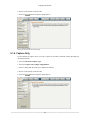
Select the
button to save the changes.
button to return to the Options screen.
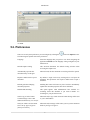
5.9. DocType Results Fields
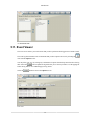
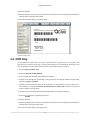
You may pick the document-type fields you wish to see in the results grid by selecting the
in the Options screen.
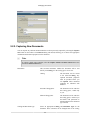
Select the catalog and document type that you would like to manage.
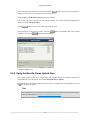
Use the
icon to add fields from the Available Fields box to the Results Fields box.
10
icon