1
Novell Confidential
Manual (ENU) 21 December 2004
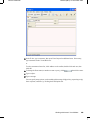
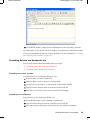
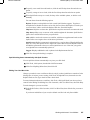
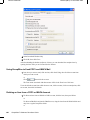
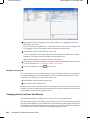
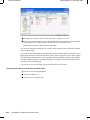
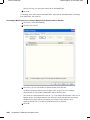
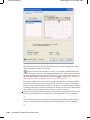
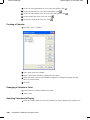
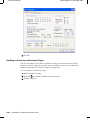
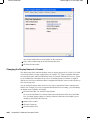
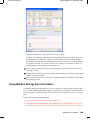
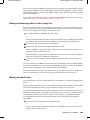
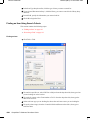
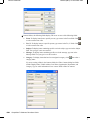
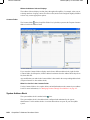
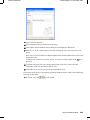
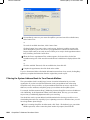
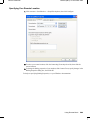
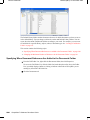
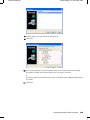
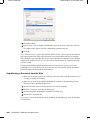
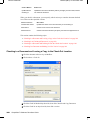
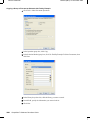
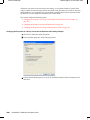
7 Click Add New Users And Rights To Selected Documents to modify the existing Share Lists
for each document in the group.
or
Click Replace Share Lists For Selected Documents to create a new Share List to replace the
existing Share List for each document in the group.
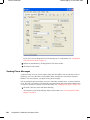
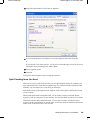
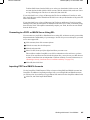
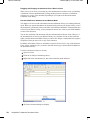
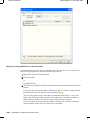
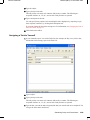
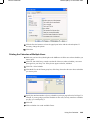
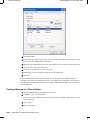
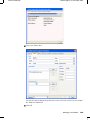
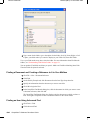
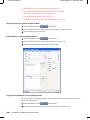
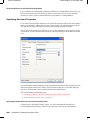
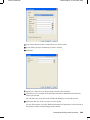
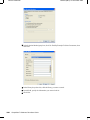
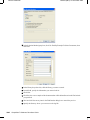
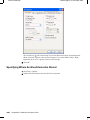
8 In the Name text box, type the name of the user for which you want to modify sharing, then
click Add User.
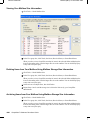
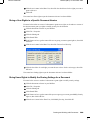
9 In the Share List, click the name of the user for whom you want to modify sharing rights.
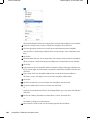
10 In the Rights for All Versions group box, click the rights you want to give the user to the
selected group of documents.
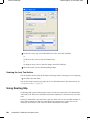
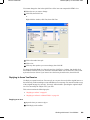
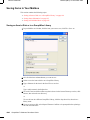
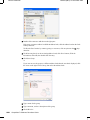
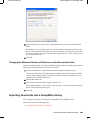
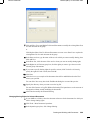
11 If you want to specify sharing rights for specific versions, click Version Level Security,
specify the rights for each version, then click OK.
12 Click Next.
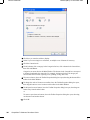
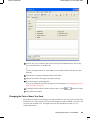
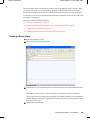
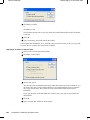
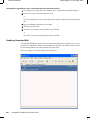
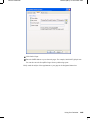
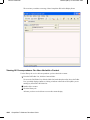
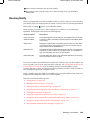
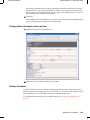
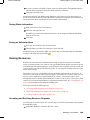
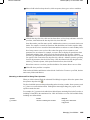
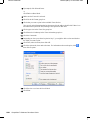
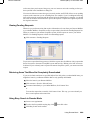
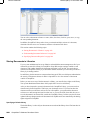
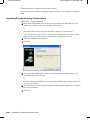
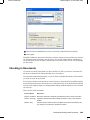
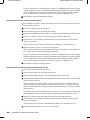
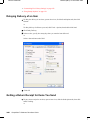
13 Click Preview to see a sample of the documents that will be modified based on the Find
criteria you specified.
You can click Close at any time in the Find Results dialog box to cancel the preview.
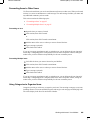
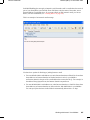
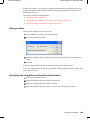
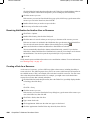
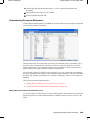
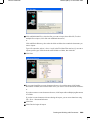
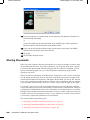
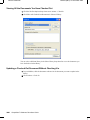
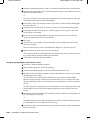
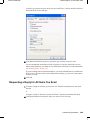
14 Specify the directory where you want to save the log file.
You can click Generate A Log File Without Performing The Operation to see the outcome of
the operation without actually modifying the documents.
15 Click Finish to modify the document sharing.
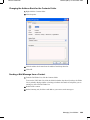
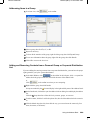
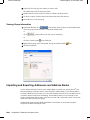
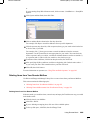
Changing Sharing Rights for Selected Documents
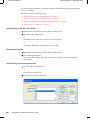
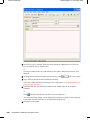
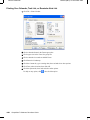
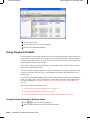
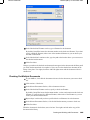
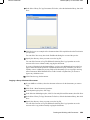
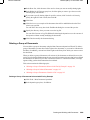
1 In your Mailbox or folders, select the document references for the documents for which you
want to change sharing rights.
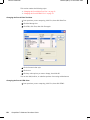
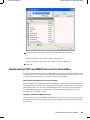
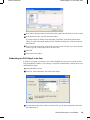
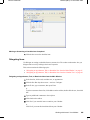
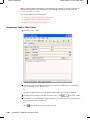
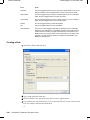
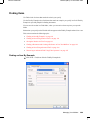
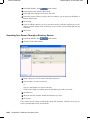
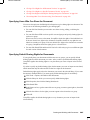
2 Click Tools > Mass Document Operations.
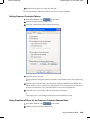
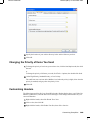
3 In the Operation group box, click Change Sharing.
Creating and Working with Documents
331