1
LogTag Quick Start Guide
3
Using the LogTag with the Interface
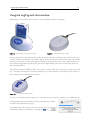
Depending on the product you will need one of two different interface cradle types.
Figure 8: Standard interface cradle with LogTag
Figure 9: TICT/TIC20 interface cradle
Most products use the standard interface cradle, where the LogTag is inserted into the slot from the top as
shown to enable communication. You will be able to see the contact pins inside the slot that meet with the
matching contact pads on the LogTag. When inserting a LogTag into the slot you feel a slight resistance as
the contacts engage. Removing the LogTag will cause a slight clicking noise as the contacts snap back into
their unloaded position.
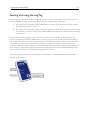
The indicator products TIC20 and TICT use a special cradle in which the contact pins are exposed at the
top. To enable communication locate the indicator's lug on the interface's boss and firmly press it down, so
the contact pins pierce through the rear label.
Figure 10: TICT in interface with adapter
You can connect both interface types to your computer at the same time, provided you use different ports.
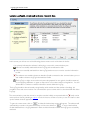
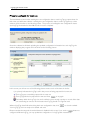
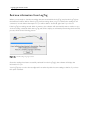
LogTag Analyzer will automatically download and display any readings
or statistics stored inside the LogTag.
The download process will only take a few seconds, but you can stop it
if needed by clicking on the button or pressing the ESC key.