1
LogTag Quick Start Guide
2
Connecting the Interface
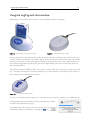
The interface cradles available from LogTag Recorders connect to either a serial (RS232) port or a USB
(Universal Serial Bus) port, depending on the model you purchased.
The ports for serial (RS232) communication devices are typically located at the rear of the computer as
shown here:
Figure 6: Rear of PC with one serial port (RS232)
Insert the plug into the port with the correct orientation. We recommend you tighten the securing screws
when the connector is plugged in so that it does not accidentally pull out during use.
The ports for USB devices are typically also located at the rear of the computer, but you may find other
ports at the front or sides of your computer. If you are using a USB hub we recommend it has its own
power supply.
Figure 7: Rear of PC with 4 USB ports
Connectors for USB devices will often display a USB logo such as
this one so you can identify them easier:
LogTag Analyzer can communicate with multiple interface cradles at the same time; you may connect as
many serial and USB interface cradles as the computer supports, although we find that connecting more
than 4 interfaces becomes impractical.
If you install LogTag Analyzer on a computer with no internet connection you must ensure USB interface
cradles are not connected until the installation is completed, since the required drivers are installed as part
of LogTag Analyzer.
If the software cannot identify a connected USB interface cradle there may have been a problem during the
installation of the software. Please refer to the FAQ on the LogTag Recorders website for further
information.