1
Confluence 3.0 Documentation
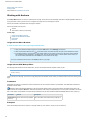
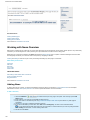
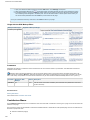
Usage with the Macro Browser
Usage with the Wiki Markup Editor
Parameters
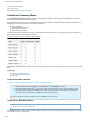
Examples
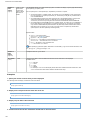
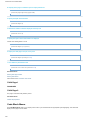
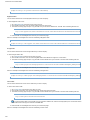
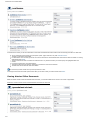
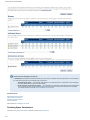
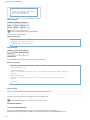
1. Include all spaces and limit the display width to 50%
2. Specify the spaces for which you want to view recently updated content
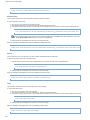
3. Specify the width of the macro display
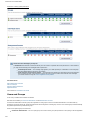
4. Filter content using labels
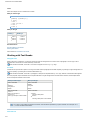
5. Display profile pictures
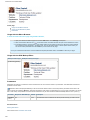
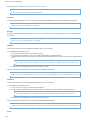
6. Display recent comments, including profile pictures and text
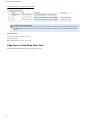
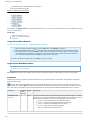
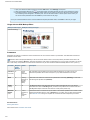
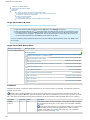
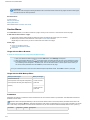
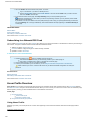
Usage with the Macro Browser
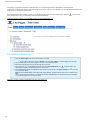
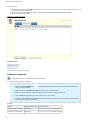
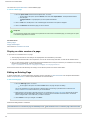
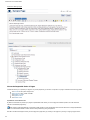
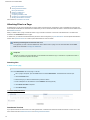
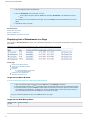
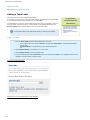
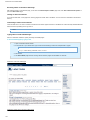
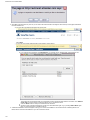
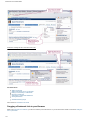
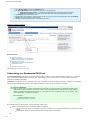
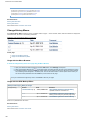
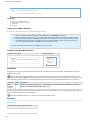
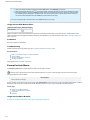
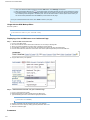
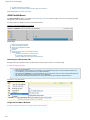
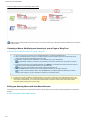
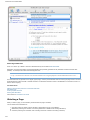
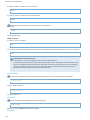
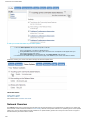
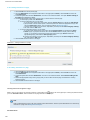
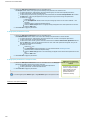
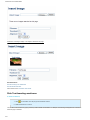
To insert the recently updated dashboard macro into a page using the Macro Browser,
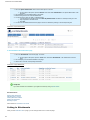
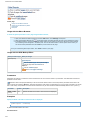
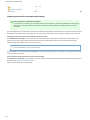
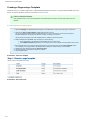
1. Open your desired Confluence page, then click the 'Edit' button. The 'Edit Page' mode opens.
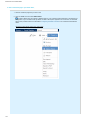
2. Next, click the Macro Browser icon
on the editor toolbar. The Macro Browser will open in the middle of the screen.
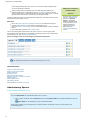
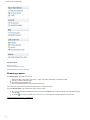
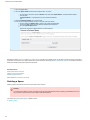
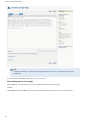
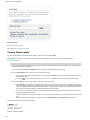
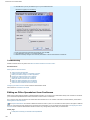
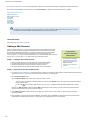
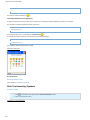
3. In the Macro Browser, type the name of your desired macro into the search box at the top right of the window. Macros
with a matching name will appear in the centre pane. Click on the desired macro to see its options screen. Here, you
can set the macro parameters then click 'insert' to put the macro into the page.
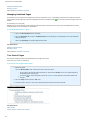
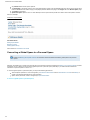
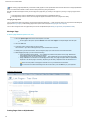
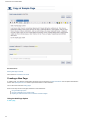
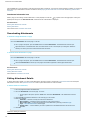
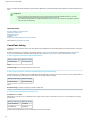
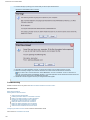
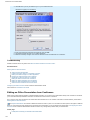
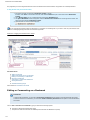
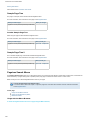
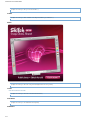
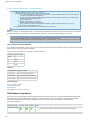
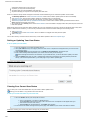
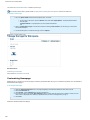
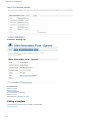
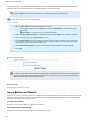
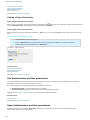
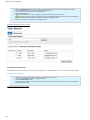
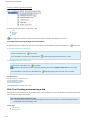
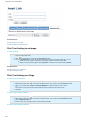
Once you've found the recently updated dashboard macro and have added the required parameter values, click 'insert' to add
it to your page.
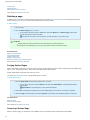
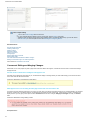
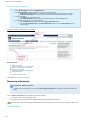
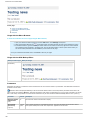
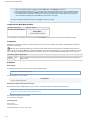
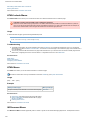
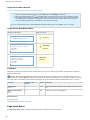
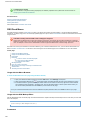
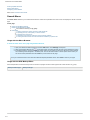
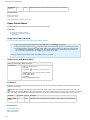
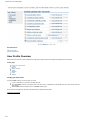
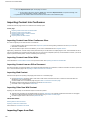
Usage with the Wiki Markup Editor
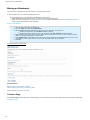
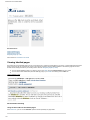
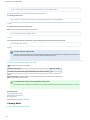
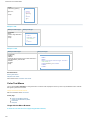
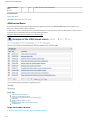
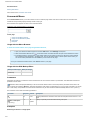
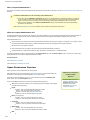
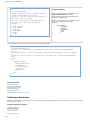
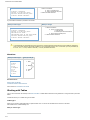
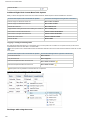
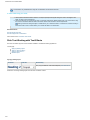
What you need to type
What you will get
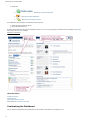
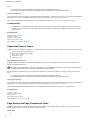
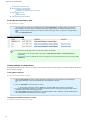
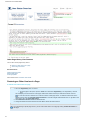
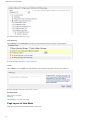
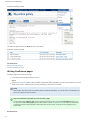
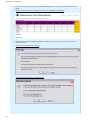
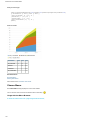
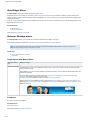
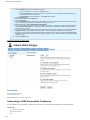
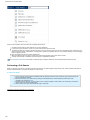
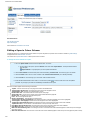
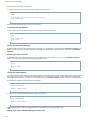
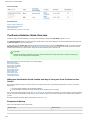
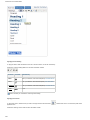
{recently-updated-dashboard}
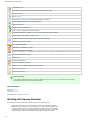
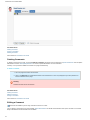
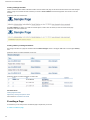
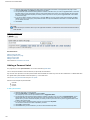
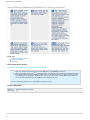
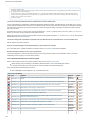
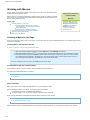
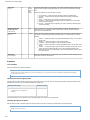
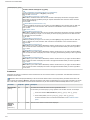
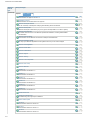
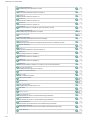
Recently Updated
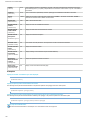
by Giles Gaskell [Atlassian Technical Writer] (4 hours ago)
Adding LDAP Integration To Confluence 2.0.x
LDAP Authentication with OSUser
by Giles Gaskell [Atlassian Technical Writer] (4 hours ago)
Re: Working with Tables
Re: Installing Confluence Standalone on Windows from Zip File
Confluence Search Syntax
Re: Viewing User Profile
Re: Confluence 3 Performance improvements
by Anonymous (4 hours ago)
by Anonymous (20 hours ago)
by Gurleen Anand (08 Jul)
by Chainsaw (08 Jul)
by niam (08 Jul)
by Cameron Mosher (08 Jul)
Re: User Macros
by Shawn Stepper (08 Jul)
Re: User Macros
by Cameron Mosher (08 Jul)
Re: User Macros
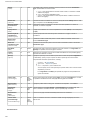
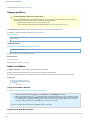
Parameters
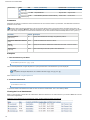
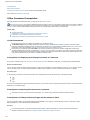
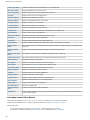
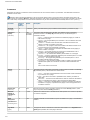
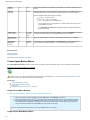
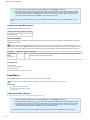
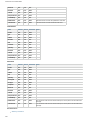
Parameters are settings for Confluence macros that allow the user to control their content or presentation. The table below lists relevant
parameters for this macro.
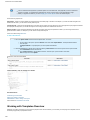
Parameter names are displayed differently in the macro browser interface and in wiki markup. Below, parameter names used in the
macro browser are indicated in Bold text, while their equivalents in wiki markup are indicated in (bracketed) text. If the latter is not shown,
then in wiki markup, the parameter's name should be omitted and only its value should be added immediately after the colon symbol ( :).
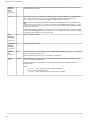
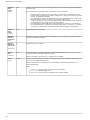
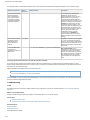
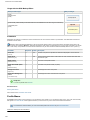
Parameter
Required?
Default
Description
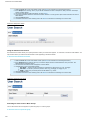
Label(s)
(labels)
no
none
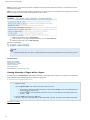
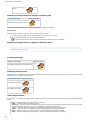
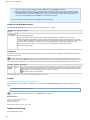
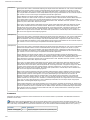
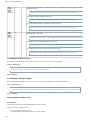
Filter content by label. The macro will display only the pages etc which are tagged
with the label(s) you specify here. You can specify one or more labels, separated
by commas.
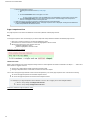
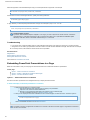
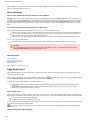
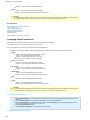
If there are no pages matching any of the specified labels, then Confluence will
ignore the labels and will list all recently updated pages, as well as showing a
message, "These labels don't exist and were ignored: xxx ". This unexpected
behaviour is noted in issue CONF-10167.
261