1
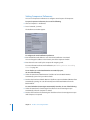
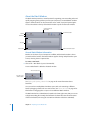
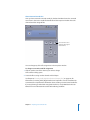
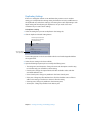
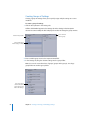
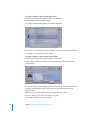
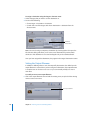
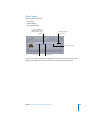
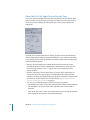
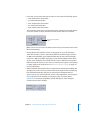
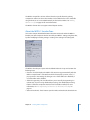
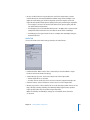
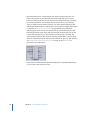
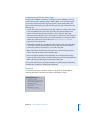
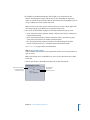
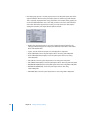
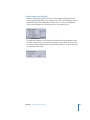
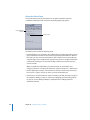
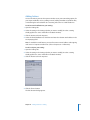
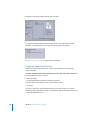
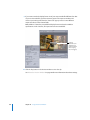
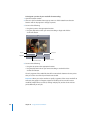
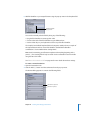
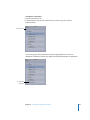
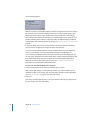
4 Click the Automatic button next to the Frame Controls pop-up menu. Compressor analyzes the transcoding job (the source media file and the applied setting), and then automatically determines the appropriate Frame Controls attributes. In Automatic mode, Frame Controls technology is engaged in the following two types of transcodes only:  Transcoding from high definition (HD) sources to standard definition (SD) MPEG-2 output files  Transcoding from interlaced sources to H.264 for DVD Studio Pro and H.264 for Apple Devices (progressive) output files To add custom Frame Controls adjustments to a setting: 1 Open the Settings tab. 2 Select the setting in the Settings tab that you want to modify. (Or select a setting already applied to a source media file in the Batch window.) 3 Click the Frame Controls tab in the Inspector window. 4 Choose On from the Frame Controls pop-up menu. Choosing On allows you to manually adjust all the attributes in the Frame Controls pane. 5 Make changes to any of the following controls in the Frame Controls pane. (See “About the Frame Controls Pane” on page 256 for details on each of the controls.)         Resize Filter Output Fields Deinterlace Adaptive Details Anti-alias Details Level Rate Conversion Duration settings 6 Click Save to save the changes. Chapter 20 Adding Frame Controls to a Setting 261