1
June 9, 2014
If you are not getting any link lights when connecting the network cable, try checking that
there is no physical damage to the cable itself and trace the wire back feeling the jacket of
the cable to ensure there are no nicks, cuts or severe kinks in the cable. Also ensure that the
cable is connected securely into the end users provided network jack.
Check Network Programming in the Reader
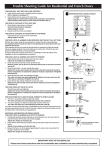
The final thing you will want to ensure is that the
VendConnect reader is properly programmed to
communicate with the 'POS' server. In order to verify
this information you will need to access ‘Programming
Mode’ on the on the VendConnect Reader. To enter
‘Programming Mode’ you will need access into the
inside of the vending machine. Once you have the
vending machine door open, on the back of the PIN
Pad/Reader there is a square white button located on
the bottom left corner while looking at the back of the
PIN Pad/Reader. Press the button once and there
should be an audible beep. Now if you look at the front
of the PIN Pad/Reader the screen should read
something like "Options Menu". You are now ready to navigate the PIN Pad and modify
programming values.
2 and 8 will navigate up and down the menu options
4 and 6 will change the value
* = Cancel / Go back to previous menu
# = Accept / Enter selected menu item
NOTE:To exit programming mode at any time press
*+*+#
NOTE: In order for the Static IP programming options
to be available for display DHCP needs to be set to “N"
under IP Menu.
Programming IP information
After pressing the square white ‘Programming Mode’
button on the back of the VendConnect Reader, press
the ‘8’ key until you reach ‘IP Menu’ and press ‘#’ to
access the menu option.
© Copyright 2012 - Kane’s Distributing Ltd., All rights reserved.
For technical support please call 905-688-8823 or your local distributor.
The information contained in this document has been carefully checked and is believed to be reliable.
However, VendConnect and/or Kane’s Distributing Ltd. assumes no responsibility for inaccuracies. Document Rev 120327