1
WARNING: The domain and codomain of the two paths must be the same. The domain
of the two paths must be the same as the codomain of the equalizer path. The test is only
valid on a confluent category. (If in doubt use the Make Confluent tool).
Equality of Composites
To test two (composite) arrows for equality in the current category select (in a category
window) Tools | Equality of Composites. A dialog allows entry of two paths.
WARNING: The category must be confluent for valid results. Domains and codomains of
paths must match.
Initial Object
In a category window, select Tools | Initial Object?. This command tests objects of the
current category (chosen by a dialog) for initiality. For each selected object which is not
initial a reason is given.
WARNING: This command will not operate correctly unless the category has a confluent
set of relations. If in doubt use Make Confluent tool first.
Isomorphism
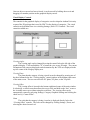
In a category window, selecting Tools | Isomorphism? opens a dialog window allowing
the input of up to non-identity two paths to be checked for isomorphism. Additionally,
the "Check all paths" checkbox may be selected to check all paths of the current category.
WARNING: The test is only valid on a confluent category. (If in doubt use the Make
Confluent tool).
Make Confluent
In a category window, select Tools | Make Confluent. This command applies the KnuthBendix algorithm to the currently displayed category with arrows ordered in their storage
order. Relations which are added to the current category are reported. To add these
relations to the current category click "Ok", or click "Cancel" to keep the category in its
current form.
Make Dual
This tool will create the opposite category of the currently displayed category. In a
category window, select Tools | Make Dual. A dialog window opens prompting for the
name of the dual. After the user provides the name the dual category is displayed in a new
window.
WARNING: The opposite category is NOT SAVED automatically when it is created; use
(in the category window) File | Save if you wish to save the dual.