1
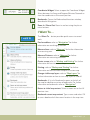
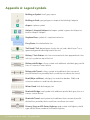
Coordinate Widget: Select to open the Coordinate Widget.
Select between Lat/Long and Degrees/Minutes/Seconds to
view the coordinates at the cursor position.
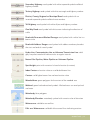
Bookmarks: Opens the Bookmarked Locations window,
described in Navigation.
Zoom In / Zoom Out: Zoom in and out using the plus or
minus buttons.
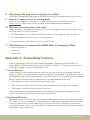
I Want To…
The I Want To… button provides quick access to several
tools.
Find an address: refer to “Navigation” for further
information on searching by location.
Measure Area: refer to “Measure” for further information
on measuring area.
Measure Distance: refer to “Measure”for further
information on measuring distances.
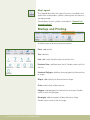
Create a map: refer to “Markup and Printing” for further
information on how to create a map.
Printing: refer to “Markup and Printing” for further
information on how to create and print a custom map.
Change visible map layers: refer to “Map Layers” for
further information on how to turn map layers on and off.
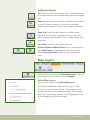
Bookmarks: A list of all bookmarks opens to the left of
the map for addition or review of bookmarks For further
information on bookmarks refer to “Navigation”.
Return to initial map extent: Select to zoom out to the full
province view.
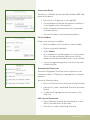
Bookmark current map extent: Type a name and select OK
to save a bookmark of the current location in the map view.
AUGUST 2015 | 3