1
About
The About tab provides information about the Make a
Topographic Map application and is also home to the Quick
Start Guide.
About
Select the About button for relevant information about the
application tool.
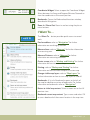
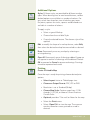
At the bottom left corner of the application window, below
About, there are two default icons that provide quick
access to the Select Map Layers and tools. New icons may
appear next to these icons as other tools are used.
Help
Select Help to open the Quick Start Guide with details on
how to use the Make a Topographic Map application.
Additional Options
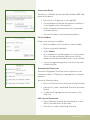
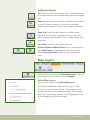
Full Screen: Application switches to full screen mode using
F11 on the keyboard. Use the key again and return all tabs
and browser elements to their normal state.
Language: Switch from French to English or English to
French.
Search: A quick search option. Type the name of a town or
other location and select Search. Search Results opens and
displays any matching results.
Open Toolbar: Hides the toolbar tabs when selected once.
Select again and it restores the toolbar.
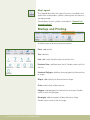
Overview Map: Open by selecting the arrow at the bottom
right of the map view. Select and drag the blue box and the
view will also move.
Scale: Scale bar adjusts with the map view.
2 | Quick Start Guide - Make a Topographic Map |