1
Page • 209
Calculations
unexpected happened in the calculation core and you should pack the project and
send us the data along with the description so that we can research what happened
and fix the problem. "Division by zero" for example is indicating that a value was
zero but the program did not expect it to be, "Illegal access to memory" shows that
the program tried to access a memory location that was never assigned. Problems
like these need to be fixed and the program authors do this, but in order to reproduce
the error they need the data.
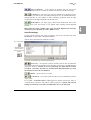
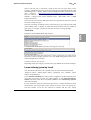
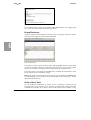
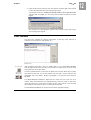
ERROR will immediately terminate the calculation. Errors can be have various roots
but very often are caused by the geometry data. For example "Roads assigned to
traffic light xxx could not be found" or "Building xxx, No. yyy has no attributes".
Next to the error description you will find the object ID of the data object that is
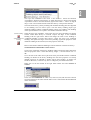
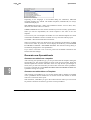
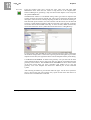
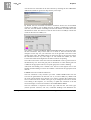
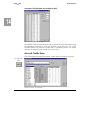
causing the problem. With this ID number you can search for the object in the GeoDatabase. (EDIT ->SEARCH OBJECT opens the dialog for the object ID with OK the
object will be zoomed to fill the screen.)
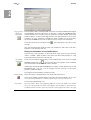
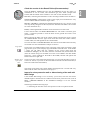
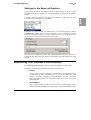
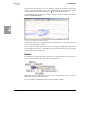
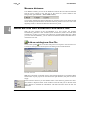
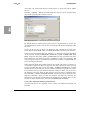
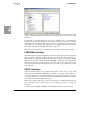
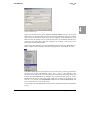
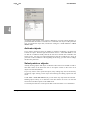
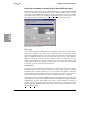
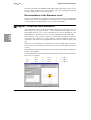
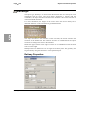
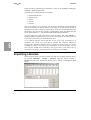
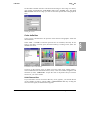
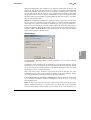
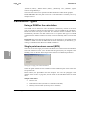
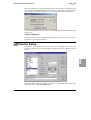
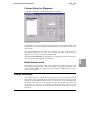
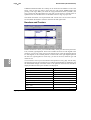
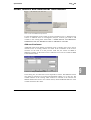
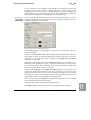
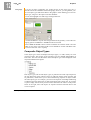
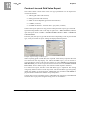
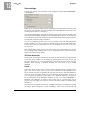
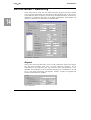
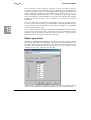
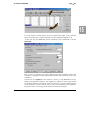
Run Settings
7
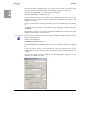
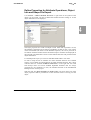
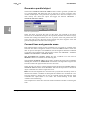
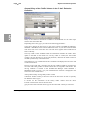
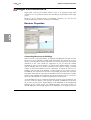
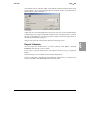
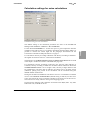
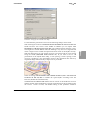
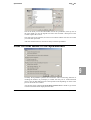
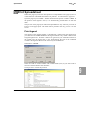
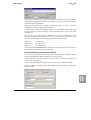
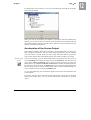
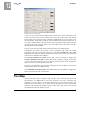
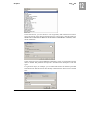
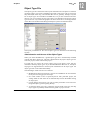
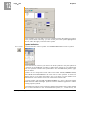
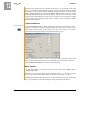
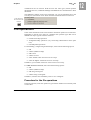
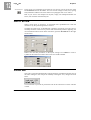
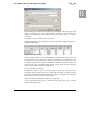
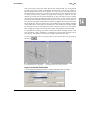
In OPTIONS/RUN
calculation runs.
SETTINGS
define general pre-settings for all projects and all
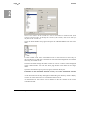
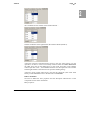
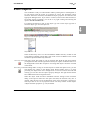
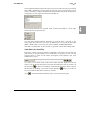
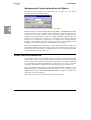
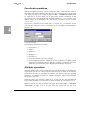
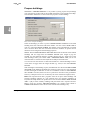
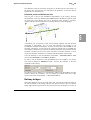
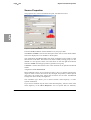
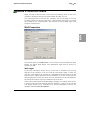
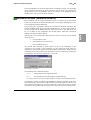
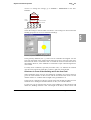
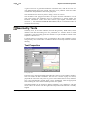
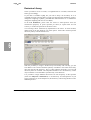
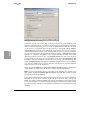
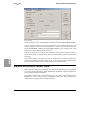
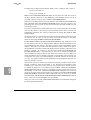
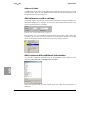
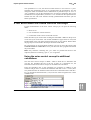
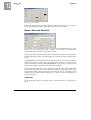
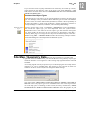
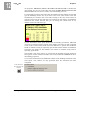
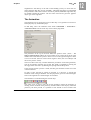
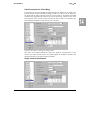
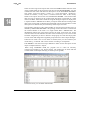
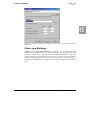
Calculations can be finished even if problems have occurred. The number of such
exceptions can be set for single point receivers and for Grid Noise Maps. By default
up to 10 exceptions are allowed. Please always look in the logbook if an exception
has caused a receiver not to be calculated.
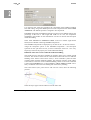
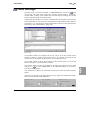
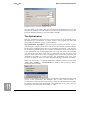
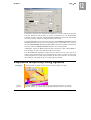
With Grid Noise Maps exceptions will mark the receiver that has not been
calculated properly, the receivers with the exceptions can be processed later. Define
how many grid points can be skipped until the program terminates.
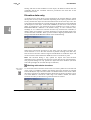
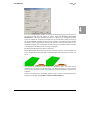
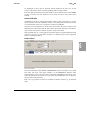
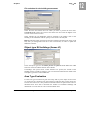
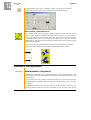
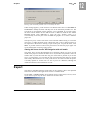
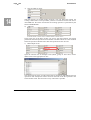
CANCLE BATCH RUN ON SINGLE RUN TERMINATION:
Determines if the entire batch
run of multiple calculations shall be terminated if one of the runs is reporting
unrecoverable errors.
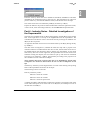
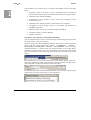
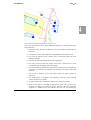
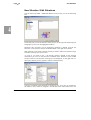
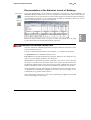
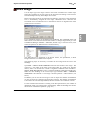
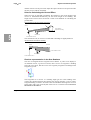
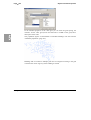
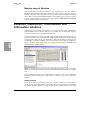
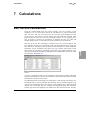
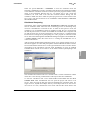
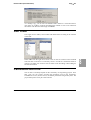
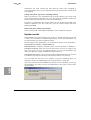
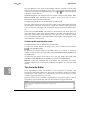
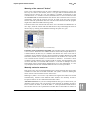
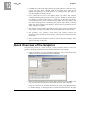
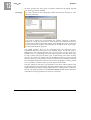
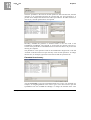
Hint: As data entry errors often become visible and get noted when the geometry
data are loaded into memory, it is good practice to load the data of all calculations
before the entire batch is started. To do so position the cursor on the calculation run
SoundPLAN Manual
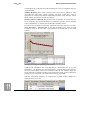
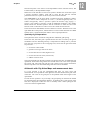
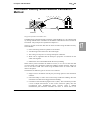
Generate calculations runs and edit the properties