1
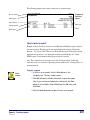
The default data in the Start at box is the number or name of the first data record of the
currently specified index, and the default data of the End at box is the number or name of
the last data record of the currently specified index. If you want to print only a portion of
the data records, you can edit these fields so the range includes those records you want to
print.
Because the default range changes according to which report you generate and what
index you use, you should choose your report, index, and in some cases your secondary
index before you specify the range. For example, if you want to generate a report listing
all of your materials by subject, you would choose the Subject report and use the default
range. You wouldn’t need to change the range in the Material Reports window.
Range values are not case-sensitive. Capital letters are not distinguished from lowercase
letters in the Range box.
How to set a range to report on
Example scenario: You want to create a report that shows how many students are in each
grade. In your system, each grade is set up as a different patron type from 10–22
(teachers and other staff are patron types 1–9).
To set a range to report on
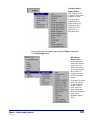
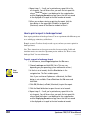
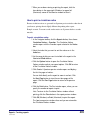
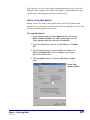
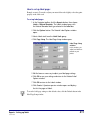
1 In the Navigator toolbar, click the Reports button, then choose
Circulation Statistics > Number of Patrons by Type. The
Circulation Reports window opens with the Number of Patrons
by Type report selected in the Report box. This report can only
be indexed by patron types.
2 In the Start at box, enter 10.
3 In the End at box, enter 22.
4 Click Create. The report lists the number of students in each
grade.
Reports: Setting up reports
SCC5um1200kn
391