1
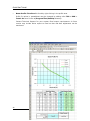
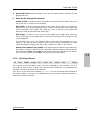
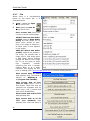
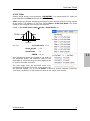
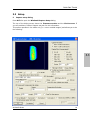
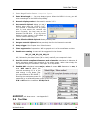
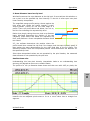
Quick-Start Tutorial no standard 16-bit TIFF format. These files do successfully import into Windows Paint. For the file format see Tiff.h in c:\Program files\DataRay. Tiff.h describes the structure of the Save current data as … TIFF image file. MatLab: To import TIFF files into MatLab see Appendix D. Screen to Clipboard sends the screen area between the Toolbar & the Status bar to the clipboard, allowing import into reports generated in other software. Other options are Save current screen as bitmap file & Export screen to Paint. To save images as *.jpg (JPEG) or *.gif (Graphics Interchange Format) files, use the Export to Paint feature in the DataRay software. Print… Ctrl P, Print Preview & Print Setup… are self-explanatory. The software will print the current screen, plus the date & a screen plot title. The profiles are deliberately printed with vertical elongation for greater visibility. The header includes the software version number, & the day & date of printing. To avoid soggy black paper with ink-jet printers, go Palettes & choose Inksaver. Print with Notes allows you to do precisely that. The information is saved and may be modified for subsequent prints. Load Defaults does precisely that, useful if things seem ‘screwed up’. Holding the Shift key down while starting the software has the same effect. Load Job and Save Job… A Job file allows saving and opening particular software setups. It is especially useful when testing a variety of laser assemblies on a regular basis. Saving a complex setup with specific Pass/Fail criteria is a very effective way of saving time and establishing parameters for repeatable results. Multiple *.ojf files can be saved, each with a different set of settings. The next block shows the names and paths of the six most recent files that have been saved and/or opened. Where no file path is shown, then the file is in the c:\Program Files\DataRay directory where you originally installed the software. 3.2.8 Device Select the hardware that you are working with. WinCamD: DualCam Compare displays the results from two cameras on a single screen. WinCamD Series 49 3.2