1
Chapter 4: Programming Environment
Offline Toolbar Components
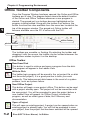
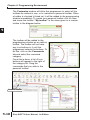
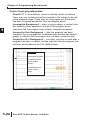
Once the Program Window has been opened, the Online and Offline
toolbars are in view. The diagram below shows the default location
of the Online and Offline Toolbars whenever a new program is
started. The grayed-out icon buttons become highlighted as the
program is being edited. Along with the toolbar icon buttons, the
button functions are also available from the menu bar located at the
top of the program window. The grayed-out Online toolbar will
become available once the PC is online with the PLC.
1
2
3
4
5
6
7
8
9
1
11
2
13
4
A
B
C
D
Menu bar
Online Toolbar
Offline Toolbar
The toolbars are movable, or floating. By selecting the toolbar and
dragging it with the mouse, the toolbar can be located wherever the
programmer wishes to place it on the desktop.
Offline Toolbar
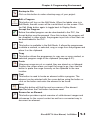
Read from Disk
This button is used to retrieve and open a program from the disk.
The program will appear in the Ladder View.
Write to Disk
The ladder logic program will be saved to the .prj project file on disk
(not the entire project). It is a good practice to save your work
frequently. This helps prevent data losses in the event of a system
problem, such as a power failure.
New Offline Project
This button will begin a new project offline. This button can be used
with a project already open. The project will not be overwritten with
the new project. You will be prompted to save the project before a
new Ladder View will appear. An Offline Project includes the
program, as well as other types of data, like V-Memory and
documentation.
Open a Project
This will open an existing project. A project can be opened when an
existing project is already open. You will first be prompted to save
your project, then the project that has been selected will be opened.
4-2
DirectSOFT 6 User Manual, 1st Edition