1
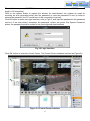
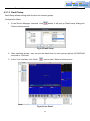
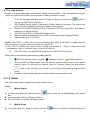
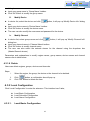
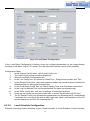
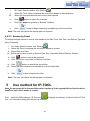
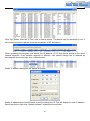
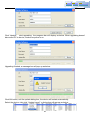
users can set weekly schedules for each channel. The user can set time periods for each day of a week. Configuration Steps 4.3.2.2.1 Week Schedule Configuration i. On 'Local Configuration' interface, select 'Local Schedule Config’ tab, it will display 'Local Schedule Config' interface. ii. Select a camera from the device list to configure the schedule, and click iii. Select a day of the week and then drag the mouse to select a time zone. The user can create multiple time zones for a particular day. Note: Ruler button. means 24 hour one of a day, the least time frame that can be selected is 15 minutes. 4.3.2.2.2 Holiday Schedule Configuration User can also set certain dates as holidays and configure the time zone for the same. i. ii. Select the camera from the device list Add a date in ‘Holiday iii. Click button, and use the mouse to set the schedule for the holiday. 4.3.2.2.3 Local Alarm Configuration A user can configure the CMS for recording based on a motion detection, sensor alarm or video loss alarm. Configuration Steps i. In the ‘Local Configuration’ interface, select ‘Local Alarm Config’ tab. ii. Select a channel from the device list. iii. Select the ‘Alarm Type’ Note: In order to select sensor based recording/alarm, select the device from the device list and the sensors would be displayed in the ‘Alarm type’ box iv. Once an alarm type has been selected, the user can trigger ‘PC Audio Alarm’, Channel Recording or link it to E-Map (applicable to motion and video loss alarm only) Note: Alarm Trigger: Local Sound Alarm, E-Map Alarm and Trigger Channel Alarm A particular alarm can be set to trigger a local sound alarm on the CMS. Sound alarm can be triggered by sensor alarm, motion detection or video loss. E-Map Alarm refers to triggering an alarm on the E-Map. Once an alarm has been linked to an E-Map, the selected channel/camera would appear in alarm state in the E-Map. For further details, please refer to section 4.3.4.1.6 ‘Set Camera’ 18