1
PREV CH
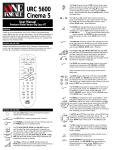
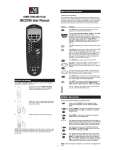
FEATURES AND FUNCTIONS
Here are the features and functions of the Cinema 7
universal remote control. Use the drawing to locate each
feature of the remote, then refer to the chart for a description of what function each feature performs.
The PREV CH (Previous Channel) key
operates the same as the Last Channel or
Recall key on your original remote. The PREV
CH key also controls the following functions in
other modes: DVD/LD, RCVR, AUX and CD
mode = Random.
SURROUND
The CH ▲/▼, VOL ▲/▼, MUTE, PREV CH
and Digit (0-9) keys are made of a phosphorescent material that glows-in-the-dark.
Expose the keys to bright light to activate the
glow-in-the-dark feature. The length of time the
keys remain illuminated will be determined by
the length of time the remote is exposed to
bright light.
CH
CH
VOL
VOL
MUTE
MACRO
MACRO 2
SLEEP
The SLEEP key accesses the Sleep Timer of
your home entertainment components (TV,
CABLE/SAT, RCVR and AUX modes only).
Even if your component does not have a Sleep
Timer, the Cinema 7 may access its own builtin sleep timer.
The REW (Rewind), PL (PLAY), FF (Fast
Forward) REC (Record), STOP, and PAUSE
keys operate the same as the transport keys
on your original VCR, Laser Disc, DVD and CD
Player remote. As a safety feature of the
Cinema 7, you must press the REC key twice
before recording.
REW
PL
FF
REC
The TV/VCR key operates the same as the TV/
VCR key on your original VCR remote. The TV/
VCR key also controls the following functions in
other modes: TV mode = TV/VIDEO, CBL/SAT
mode = A/B or TV/SAT, DVD/LD mode = TV/LD,
RCVR mode = Input Select, CD mode = A/B.
FEATURES AND FUNCTIONS
MENU
The MAGIC key is used to program your
Cinema 7.
TV
VCR
DVD/LD
RCVR
AUX
CD
The POWER key controls power ON and OFF
the same as the POWER key on your original
remote. Please note that most CD Players do
not have an ON/OFF function on the original
remote control. If this is the case with your CD
Player, then POWER will have no effect on
your CD Player.
The TV, VCR, DVD/LD, RCVR, AUX, CD and
CABLE/SAT keys are used to select the home
entertainment component you want to control.
If your component does not respond when you
press a key on the remote control, press the
appropriate device key (TV, VCR,
DVD/LD, RCVR, AUX, CD or CABLE/SAT)
first to tell the remote control which component
you would like the remote to operate.
SEL
2.
VOL
MUTE
CH
CH
0 - 9
3.
Press the battery cover back into place.
4.
Test the unit by pressing POWER. If the batteries
are inserted correctly, the red light will blink.
NOTE: Removing the batteries will not require you to
reprogram your remote control because the Cinema 7 has
unlimited memory backup.
ENTER
The , , ▲ , and ▼ (Menu Up, Down, Left and
Right) keys are used to navigate your On-Screen
menus. The , , ▲, and ▼ keys also control
the following functions in other modes: RCVR
and AUX mode = Rear Level +/- and Balance
Left/Right, CD mode = Track+/- and Disc +/-.
The SEL (Select) key selects options in your
On-Screen menus. The SEL key also controls
the following functions in other modes: RCVR
and AUX mode = Surround Mode, CD mode =
Disc Select, DVD/LD mode = Chapter.
SEL
EXIT
PROG/GUIDE
The CH▲ (Channel Up) and CH▼ (Channel
Down) keys change channels the same as the
Channel Up and Down keys on your original
remote. The CH▲/▼ keys also control the
following functions in other modes: DVD/LD
mode = Skip Forward/ Skip Reverse, RCVR,
AUX and CD mode = Preset Up/Preset Down.
The ENTER key operates the same as the
Enter key on your original remote. If your
original remote control required you to use an
Enter key to change channels, use the ENTER
key on the Cinema 7 after entering your
channel number. The ENTER key also controls
the following functions in other modes: RCVR
and AUX modes = TAPE MON.
The MENU key operates the same as the
MENU or OSD (On Screen Display) key on
your original remote. Use ▲, ▼, , and
(Menu Up, Down, Left and Right) to navigate
your menus. If your original remote control had
a SELECT key to select options in your menus,
use SEL. Use the EXIT key to exit/clear your
On-Screen menus. Please consult your home
entertainment component’s original owner’s
manual for more detailed instructions on
accessing and navigating your On-Screen
menus.
TV Brand:
Locate the brand name of your TV in the “Setup Codes
For TVs” section. The brands are listed in alphabetical
order with the most popular codes listed first. You will use
one of these codes to program your Cinema 7 to operate
your TV.
To program the Cinema 7 to operate your TV:
1.
Turn on your TV.
2.
TV
MAGIC
3.
SEL
EXIT
DISPLAY
/Off
On
P
I
P
Swap
Move
Press TV and release. Press and hold MAGIC
until the Cinema 7’s red light blinks twice, then
release MAGIC.
POWER
Aim the Cinema 7 at your TV and press
POWER. Your TV should turn off. If
your TV does not respond, repeat steps 2-4,
trying each code listed for your
brand until you find the one that operates your
TV.
Your Cinema 7 is now programmed to operate
your TV. Write your TV code in
the boxes to the left for future reference.
5.
Remember, if you want to use your Cinema 7 to operate
your TV, press the TV key first.
The EXIT key exits or clears your on-screen
menus. The EXIT key also controls the
following functions in other modes: RCVR,
AUX and CD mode = Open/Close.
Programming the Cinema 7 to operate your VCR:
Locate the brand name of your VCR and then write it in
the space below.
The PROG/GUIDE key operates your
components secondary menus as well as your
DBS system’s and Cable Converter’s Guide
function. Use the
, , ▲ , and ▼ (Menu Up, Down, Left and
Right) keys to navigate your menus. If your
original remote control had a SELECT key to
select options in your menus, use SEL. Use
the EXIT key to exit/clear your On-Screen
menus. Please consult your home entertainment component’s original owner’s manual for
more detailed instructions on accessing and
navigating your On-Screen menus.
Locate the brand name of your VCR in the “Setup Codes
For VCRs” section. The brands are listed in alphabetical
order with the most popular codes listed first. You will use
one of these codes to program your Cinema 7 to operate
your VCR.
To program the Cinema 7 to operate your VCR:
1.
Turn on your VCR and insert a tape.
VCR Brand:
2.
VCR
MAGIC
3.
The SWAP key swaps the Picture-in-Picture
window and the TV’s main picture. The SWAP
key also controls the following functions in
other modes: CBL/SAT mode = SAT.
The MOVE PIP key moves the Picture-inPicture window around your TV screen. The
MOVE PIP key also controls the following
4.
POWER
or
PL
5.
2.
CD
MAGIC
3.
4.
Press CD and release. Press and hold MAGIC
until the Cinema 7’s red light blinks twice, then
release MAGIC.
Enter the first four-digit CD Player code listed
for your brand in the “Setup Codes For CD
Players” section. If you perform this procedure
correctly, the red light will blink twice when you
enter the final digit of your code.
PL
Aim the Cinema 7 at your CD Player and press
PL (Play). Your CD Player should play your
disc. If your CD Player does not respond,
repeat steps 2-4, trying each code listed for
your brand until you find the one that operates
your CD Player.
Your Cinema 7 is now programmed to operate
your CD Player. Write your CD Player code in
the boxes to the left for future reference.
5.
DVD/LD Brand:
Remember, if you want to use your Cinema 7 to operate
your CD Player, press the CD key first.
Locate the brand name of your DVD or Laser Disc Player
in the “Setup Codes For DVD or Laser Disc Players”
section. The brands are listed in alphabetical order with
the most popular codes listed first. You will use one of
these codes to program your Cinema 7 to operate your
DVD or Laser Disc Player.
To program the Cinema 7 to operate your DVD or Laser
Disc Player:
1.
Turn on your DVD or Laser Disc Player and
insert a disc.
2.
DVD/LD
MAGIC
3.
4.
Press DVD/LD and release. Press and hold
MAGIC until the Cinema 7’s red light blinks
twice, then release MAGIC.
Enter the first four-digit DVD or Laser Disc
Player code listed for your brand in the “Setup
Codes For DVD or Laser Disc Players” section.
If you perform this procedure correctly, the red
light will blink twice when you enter the final
digit of your code.
POWER
Aim the Cinema 7 at your DVD or Laser Disc
Player and press POWER. Your DVD or Laser
Disc Player should turn off. If your DVD or
Laser Disc Player does not respond, repeat
steps 2-4, trying each code listed for your
brand until you find the one that operates your
DVD or Laser Disc Player.
Your Cinema 7 is now programmed to operate
your DVD or Laser Disc Player.
Write your DVD or Laser Disc Player code in
the boxes to the left for future reference.
5.
Programming the Cinema 7 to operate your Receiver/
Tuner:
Locate the brand name of your Receiver/Tuner and then
write it in the space below.
Amplifier does not respond, repeat steps 2-4,
trying each code listed for your brand until you
find the one that operates your Amplifier.
Programming the Cinema 7 to operate your Cable
Converter or Satellite:
Locate the brand name of your Cable Converter or
Satellite and then write it in the space below.
SEARCHING FOR YOUR CODE
If your TV, VCR or Cable Converter does not respond to
the Cinema 7 after trying all of the codes listed for your
brand, or if your brand is not listed at all, try searching for
your code. For example, after trying all of the codes for
your TV, you still cannot get the Cinema 7 to operate your
TV, then:
1.
Turn on your TV.
2.
2.
RCVR
MAGIC
3.
4.
5.
Press RCVR and release. Press and hold
MAGIC until the Cinema 7’s red light blinks
twice, then release MAGIC.
Enter the first four-digit Receiver/Tuner code
listed for your brand in the “Setup Codes For
Receivers/Tuners” section. If you perform this
procedure correctly, the red light will blink twice
when you enter the final digit of your code.
POWER
Aim the Cinema 7 at your Receiver/Tuner and
press POWER. Your Receiver/Tuner should
turn off. If your Receiver/Tuner does not
respond, repeat steps 2-4, trying each code
listed for your brand until you find the one that
operates your Receiver/Tuner.
Your Cinema 7 is now programmed to operate
your Receiver/Tuner. Write your Receiver/
Tuner code in the boxes to the left for future
reference.
Aim the Cinema 7 at your VCR and press
POWER. Your VCR should turn off. If your original
VCR remote control did not have a POWER key,
press PL (Play). Your VCR should start to play. If
your VCR does not respond, repeat steps 2-4,
trying each code listed for your brand until you
find the one that operates your VCR.
Remember, if you want to use your Cinema 7 to operate
your Receiver/Tuner, press the RCVR key first.
Your Cinema 7 is now programmed to operate
your VCR. Write your VCR code in the boxes to
the left for future reference.
Programming the Cinema 7 to operate your CD Player:
Locate the brand name of your CD Player and then write
it in the space below.
CD Player Brand:
TV
MAGIC
2.
CABLE/SAT
MAGIC
3.
4.
Press CABLE/SAT and release. Press and
hold MAGIC until the Cinema 7’s red light
blinks twice, then release MAGIC.
Enter the first four-digit Cable Converter or
Satellite code listed for your brand in the “Setup
Codes For Cable Converters or Satellites”
section. If you perform this procedure correctly,
the red light will blink twice when you enter the
final digit of your code.
POWER
Aim the Cinema 7 at your Cable Converter or
Satellite and press POWER.Your Cable
Converter or Satellite should turn off. If your
Cable Converter or Satellite does not respond,
repeat steps 2-4, trying each code listed for
your brand until you find the one that operates
your Cable Converter or Satellite.
Press TV and release. Press and hold MAGIC
until the Cinema 7’s red light blinks twice, then
release MAGIC.
3. 9 - 9 - 1Press 9 - 9 - 1.
POWER
5.
Slowly alternate between pressing POWER*
and TV until your TV turns OFF. Make sure that
the Cinema 7 is aimed at your TV during the
search. You may have to press this sequence
of buttons (POWER* then TV) up to 100 times
to search the entire library of codes.
When your TV turns OFF, press and release
MAGIC to lock in the code for your TV. Your
Cinema 7 is now programmed to operate your TV.
Cable Converter Brand:
or
Satellite Brand:
Locate the brand name of your Cable Converter or
Satellite in the “Setup Codes For Cable Converters or
Satellites” section. The brands are listed in alphabetical
order with the most popular codes listed first. You will use
one of these codes to program your Cinema 7 to operate
your Cable Converter or Satellite.
To program the Cinema 7 to operate your Cable Converter
or Satellite:
1.
Turn on your Cable Converter or Satellite.
*If you are searching for your VCR, CD, LD or DVD Player
code, you may want to use the PL (Play) key instead of
the POWER key to search for your code. When your VCR
starts to play, press MAGIC to lock in your code.
NOTE: To search for the codes of your other components,
repeat Steps 1 through 4, only substitute the appropriate
device key (VCR, DVD/LD, RCVR, AUX, CD or CABLE/
SAT) for the component you are searching for.
LEARNING THE CODES PROGRAMMED INTO
THE CINEMA 7
If you have set up the Cinema 7 using the “SEARCHING
FOR YOUR CODE” procedure, you may want to figure out
which three-digit code is operating your equipment. Use
this procedure after you have set up your components to
find out which four-digit code is operating your equipment.
For example, to find out which code is operating your TV
after setting up your TV using the “SEARCHING FOR
YOUR CODE” procedure:
1. TV
Press TV and release. Press and hold MAGIC
until the Cinema 7’s red light blinks twice, then
MAGIC
release MAGIC.
2. 9 - 9 - 0Press 9 - 9 - 0.
3.
1
Your Cinema 7 is now programmed to operate
your Cable Converter or Satellite. Write your
Cable Converter or Satellite code in the boxes
to the left for future reference.
For the first digit of your four-digit code, press
1 and count the number of times the red light
(LED) blinks on the Cinema 7. If the light does
not blink when you press the number 1, the
digit is zero.
4.
2
Remember, if you want to use your Cinema 7 to operate
your Cable Converter or Satellite, press the CABLE/SAT
key first.
For the second digit, press 2 and count the
number of times the red light (LED) blinks on
the Cinema 7. If the light does not blink when
you press the number 2, the digit is zero.
5.
3
For the third digit, press 3 and count the
number of times the red light (LED) blinks on
the Cinema 7. If the light does not blink when
you press the number 3, the digit is zero.
6.
4
For the fourth and final digit, press 4 and count
the number of times the red light (LED) blinks
on the Cinema 7. If the light does not blink
when you press the number 4, the digit is zero.
Now you have your four-digit code.
5.
Programming the AUX Key:
The AUX key is already set up to accept codes for a
second Receiver/Tuner, Amplifier or other audio component. If you would like to set up the AUX key for an audio
component, follow the instructions listed below. If you
would like the AUX key to control a second TV, VCR,
Cable Converter or other component, follow the instructions in the “Re-assigning Device Keys” section to reassign the AUX key to accept codes for other components.
For example, if you are setting up an Amplifier:
Locate the brand name of your Amplifier and then write it
in the space below.
Amplifier Brand:
Locate the brand name of your Amplifier in the “Setup
Codes For Amplifiers” section. The brands are listed in
alphabetical order with the most popular codes listed first.
You will use one of these codes to program your Cinema 7
to operate your Amplifier.
To program the Cinema 7 to operate your Amplifier:
1.
Turn on your Amplifier.
2.
AUX
MAGIC
3.
4.
Press AUX and release. Press and hold
MAGIC until the Cinema 7’s red light
blinks twice, then release MAGIC.
Enter the first four-digit Amplifier code listed for
your brand in the “Setup Codes For Amplifiers”
section. If you perform this procedure correctly,
the red light will blink twice when you enter the
final digit of your code.
POWER
Aim the Cinema 7 at your Amplifier and press
POWER. Your Amplifier should turn off. If your
3.
4.
Remember, if you want to use your Cinema 7 to operate
your Amplifier, press the AUX key first.
Receiver/Tuner Brand:
Locate the brand name of your Receiver/Tuner in the
“Setup Codes For Receivers/Tuners” section. The brands
are listed in alphabetical order with the most popular
codes listed first. You will use one of these codes to
program your Cinema 7 to operate your Receiver/Tuner.
To program the Cinema 7 to operate your Receiver/Tuner:
1.
Turn on your Receiver/Tuner.
Your Cinema 7 is now programmed to operate
your Amplifier. Write your Amplifier code in the
boxes to the left for future reference.
5.
4.
Remember, if you want to use your Cinema 7 to operate
your DVD or Laser Disc Player, press the DVD/LD key first.
Enter the first four-digit VCR code listed for
your brand in the “Setup Codes For VCRs”
section. If you perform this procedure correctly,
the red light will blink twice when you enter the
final digit of your code.
The DISPLAY key operates the Display
function of your home entertainment
components.
The PIP On/Off key accesses your TV’s
Picture-in-Picture feature. The PIP On/Off key
also controls the following functions in other
modes: CD mode =Disk Skip, DVD/LD mode =
Subtitle On/Off, CBL/SAT mode = View.
Press VCR and release. Press and hold
MAGIC until the Cinema 7’s red light
blinks twice, then release MAGIC.
Locate the brand name of your CD Player in the “Setup
Codes For CD Players” section. The brands are listed in
alphabetical order with the most popular codes listed
first. You will use one of these codes to program your
Cinema 7 to operate your CD Player.
To program the Cinema 7 to operate your CD Player:
1.
Turn on your CD Player and insert a disc.
Programming the Cinema 7 to operate your DVD or
Laser Disc Player:
Locate the brand name of your DVD or Laser Disc Player
and then write it in the space below.
Enter the first four-digit TV code listed for your
brand in the “Setup Codes For TVs” section. If
you perform this procedure correctly, the red
light will blink twice when you enter the final
digit of your code.
EXIT
The VOL▲ (Volume Up), VOL▼ (Volume
Down) and MUTE keys control the volume the
same as the Volume Up and Down and Mute
keys on your original remote.
The Digit keys (0-9) control direct channel
access the same as the Digit keys on your
original remote. The Digit keys (0-9) also
control the following functions in other modes:
RCVR and AUX modes = Input Selections.
Match the + and - marks on the batteries to the +
and - marks in the battery case, then insert the
batteries.
4.
CABLE/SAT
VOL
The MACRO and MACRO2 keys can
memorize up to 15 keystrokes per key that can
be accessed in sequence with a single key
press. These keys are not mode specific.
Programming the Cinema 7 to operate your TV:
Locate the brand name of your TV and then write it in the
space below.
TV/VCR
POWER
NOTE: If your TV/VCR is working on one of the above
codes highlighted with an asterisk (*), you may need to
program a separate TV code in order to control the volume.
Check the list of codes below and follow the instructions
detailed in the “Programming the Cinema 7 to Operate
Your TV” section to program the supplied TV code.
TV/VCRs working on VCR code 0032 may require
TV code 0000 for volume control.
TV/VCRs working on VCR code 0035 may require
TV code 0051 for volume control.
TV/VCRs working on VCR code 0048 may require
TV code 0093 for volume control.
TV/VCRs working on VCR code 0060 may require
TV code 0047 for volume control.
TV/VCRs working on VCR code 0081 may require
TV code 0054 for volume control.
TV/VCRs working on VCR code 0162 may require
TV code 0250 for volume control.
TV/VCRs working on VCR code 0278 may require
TV code 0451 for volume control.
SETTING UP YOUR COMPONENTS
PAUSE
MAGIC
The SURROUND key operates the same as the
Surround On/Off key on your original remote.
The SURROUND key also controls the following
functions in other modes: VCR mode = Auto
Tracking, DVD/LD mode = Disc, CBL/SAT mode
= Favorite Channel, CD mode = 10+.
Your Cinema 7 requires four (4) new AAA alkaline
batteries. To install the batteries:
1.
On the back of the Cinema 7, pull back on the tab
and lift the battery cover off.
STOP
The Light (LED) flashes red to show that the
remote is working and is sending a signal.
Remember, if you want to use your Cinema 7 to operate
your VCR, press the VCR key first.
INSTALLING THE BATTERIES
PREV CH
0 - 9
functions in other modes: DVD/LD mode =
Angle, CBL/SAT mode = Next.
NOTE: To find out the code for your other components,
repeat Steps 1 through 6, only substitute the
appropriate device key (VCR, DVD/LD, RCVR,
AUX, CD or CABLE/SAT) for the component
code you wish to learn.
SETTING UP OTHER COMPONENTS
In addition to the components labeled on the device keys
(TV, VCR, DVD/LD, CBL/SAT, etc.), the Cinema 7 can also
operate the following components: Cassette Decks,
Infrared Home Automation, Video Accessories and
Miscellaneous Audio Components (Graphic Equalizers
and Digital Music Service Boxes).
The Setup Codes for these components can be accessed
under the following device keys:
Cassette Decks:
Use the VCR Key
IR Home Automation:
Use the CD Key
Video Accessories:
Use the CBL/SAT Key
Miscellaneous Audio:
Use the AUX or RCVR Key
For example, to set up a Cassette Player on the VCR key:
1.
Turn on your Cassette Player and insert a tape.
2.
VCR
MAGIC
Press VCR and release. Press and hold
MAGIC until the Cinema 7’s red light blinks
twice, then release MAGIC.
5.
Enter the first four-digit Cassette Player code
listed for your brand in the “Setup Codes For
Audio Cassettes” section. If you perform this
procedure correctly, the red light will blink twice
when you enter the final digit of your code.
PL
Aim the Cinema 7 at your Cassette Player and
press PL (Play). Your Cassette Player
should play your tape. If your Cassette Player
does not respond, repeat steps 2-4, trying
each code listed for your brand until you find
the one that operates your Cassette Player.
Your Cinema 7 is now programmed to operate
your Cassette Player. Remember, if you want
to use your Cinema 7 to operate your Cassette
Player, press the VCR key first.
RE-ASSIGNING DEVICE KEYS
You can use the Cinema 7 to operate a second TV or a
second VCR or any combination of seven home entertainment components. For example, you may want your
Cinema 7 to control 1 TV, 1 Cable Converter, 1 Receiver, 1
CD Player, 1 DVD Player and 2 VCRs. To accomplish this,
you must re-assign one of the device keys to operate the
desired component, in this case, a second VCR. The chart
below shows you how to re-assign a particular device key
and then set up your new component.
TV to VCR
MAGIC* + 992 + VCR + TV + TV +
MAGIC* + VCR code
TV to DVD/LD
MAGIC* + 992 + DVD/LD + TV + TV +
MAGIC* + DVD or LD Player code
TV to RCVR
MAGIC* + 992 + RCVR + TV + TV +
MAGIC* + Audio code
TV to AUX
MAGIC* + 992 + AUX + TV + TV +
MAGIC* + Audio code
TV to CD
MAGIC* + 992 + CD + TV + TV +
MAGIC* + CD Player code
TV to CBL/SAT
MAGIC* + 992 + CBL/SAT + TV + TV
+ MAGIC* + Cable/DBS code
VCR to TV
MAGIC* + 992 + TV + VCR + VCR +
MAGIC* + TV code
VCR to DVD/LD
MAGIC* + 992 + DVD/LD + VCR + VCR
+ MAGIC* + DVD or LD Player code
VCR to RCVR
MAGIC* + 992 + RCVR + VCR + VCR
+ MAGIC* + Audio code
VCR to AUX
MAGIC* + 992 + AUX + VCR + VCR +
MAGIC* + Audio code
VCR to CD
MAGIC* + 992 + CD + VCR + VCR +
MAGIC* + CD Player code
VCR to CBL/SAT MAGIC* + 992 + CBL/SAT + VCR +
VCR + MAGIC* + Cable/DBS code
DVD/LD to TV
MAGIC* + 992 + TV + DVD/LD + DVD/
LD + MAGIC* + TV code
DVD/LD to VCR
MAGIC* + 992 + VCR + DVD/LD +
DVD/LD + MAGIC* + VCR code
DVD/LD to RCVR MAGIC* + 992 + RCVR + DVD/LD +
DVD/LD + MAGIC* + Audio code
DVD/LD to AUX
MAGIC* + 992 + AUX + DVD/LD +
DVD/LD + MAGIC* + AUDIO code
DVD/LD to CD
MAGIC* + 992 + CD + DVD/LD +
DVD/LD + MAGIC* + CD Player code
DVD/LD to CBL/SAT MAGIC* + 992 + CBL/SAT + DVD/LD +
DVD/LD + MAGIC* + Cable/DBS code
RCVR to TV
MAGIC* + 992 + TV + RCVR + RCVR
+ MAGIC* + TV code
RCVR to VCR
MAGIC* + 992 + VCR + RCVR +
RCVR + MAGIC* + VCR code
RCVR to DVD/LD MAGIC* + 992 + DVD/LD + RCVR +
RCVR + MAGIC* + DVD or LD Player
code
RCVR to CD
MAGIC* + 992 + CD + RCVR + RCVR
+ MAGIC* + CD Player code
RCVR to CBL/SAT MAGIC* + 992 + CBL/SAT + RCVR +
RCVR + MAGIC* + Cable/DBS code
AUX to TV
MAGIC* + 992 + TV + AUX + AUX +
MAGIC* + TV code
AUX to VCR
MAGIC* + 992 + VCR + AUX + AUX +
MAGIC* + VCR code
AUX to DVD/LD
MAGIC* + 992 + DVD/LD + AUX + AUX
+ MAGIC* + DVD or LD Player code
AUX to CD
MAGIC* + 992 + CD + AUX + AUX +
MAGIC* + CD Player code
AUX to CBL/SAT MAGIC* + 992 + VCR + AUX + AUX +
MAGIC* + Cable/DBS code
CD to TV
MAGIC* + 992 + TV + CD + CD +
MAGIC* + TV code
CD to VCR
MAGIC* + 992 + VCR + CD + CD +
MAGIC* + VCR code
CD to DVD/LD
MAGIC* + 992 + DVD/LD + CD + CD
+ MAGIC* + DVD or LD Player code
CD to RCVR
MAGIC* + 992 + RCVR + CD + CD +
MAGIC* + Audio code
CD to AUX
MAGIC* + 992 + AUX + CD + CD +
MAGIC* + Audio code
CD to CBL/SAT
MAGIC* + 992 + CBL/SAT + CD + CD
+ MAGIC* + Cable/DBS
code
CBL/SAT to TV
MAGIC* + 992 + TV + CBL/SAT +
CBL/SAT + MAGIC* + TV code
CBL/SAT to VCR MAGIC* + 992 + VCR + CBL/SAT +
CBL/SAT + MAGIC* + VCR code
CBL/SAT to DVD/LD MAGIC* + 992 + DVD/LD + CBL/SAT
+ CBL/SAT + MAGIC* + DVD or LD
code
CBL/SAT to RCVR MAGIC* + 992 + RCVR + CBL/SAT +
CBL/SAT + MAGIC* + Audio code
CBL/SAT to AUX MAGIC* + 992 + AUX + CBL/SAT +
CBL/SAT + MAGIC* + Audio code
CBL/SAT to CD
MAGIC* + 992 + CD + CBL/SAT +
CBL/SAT + MAGIC* + CD Player code
*NOTE: Here (*) you must hold MAGIC until the Cinema
7’s red light blinks twice.