1
1.4.6 Save the server configuration on a client workstation
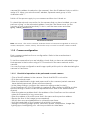
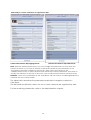
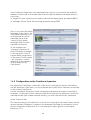
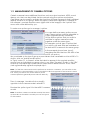
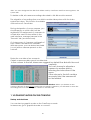
When you have finished configuring CamTrace, remember to save it on a client
workstation. You can easily reload it in the event of a problem or hardware
breakdown. To do this, use the web interface. Log on as a CamTrace administrator
(by default: admin and password: camtrace) click on administration then on
Configuration. In the Configuration menu, click on the second line: "Save
configuration" and save the file.
If you are using the Firefox browser, right click on the link then "Save link as …"
To reload a configuration, select the file to be loaded with browse then click on load.
Note: a configuration backup is only reloadable on the same CamTrace version used to
record it.
1.4.7 Check CPU load and system parameters
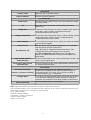
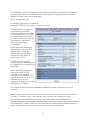
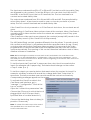
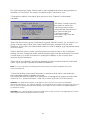
In the web Administration interface open the "system information" window.
This window provides different types of information on the configuration and
peripherals existing on your system.
You must pay particular attention to one parameter in particular, and that is the
system load.
In the first frame located on the top left note the three values appearing on the last
line, For example: system load: 1,80 1,74 1,68.
These figures indicate the average number of processes that require handling by the
processor at any given moment. With the appearance of multicore processors, the
interpretation of this data is not evident. As an initial educated guess, we could
estimate that the figure should not exceed the number of cores (two for a double
core, four for a quad core).
The memory is always occupied at more than 90%, which is normal.
However, the swap (use of the hard disk by the system to overcome insufficient
memory) must be equal to 0.
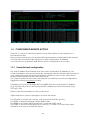
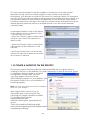
Another more complete utility is available with versions 5.x.x and earlier of CamTrace
on the console or with ssh access with putty. Connect to the system (quit the
Menucam if you are in it), and at the command prompt (# or $) enter the
command: htop followed by Enter.
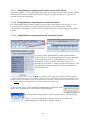
A utility in character mode appears that gives the load of each core. You can
configure the information to be displayed. The commands are indicated on the
screen.
The tasks that take up the most resources are:
- Low bandwidth mode (groups with low bandwidth),
- Motion detection performed by CamTrace,
- The indexing of movements in the recordings,
- Camera display on the console
21