1
OrgPublisher 11 User Guide
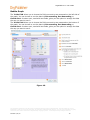
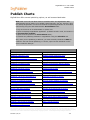
Publish Charts
You can:
•
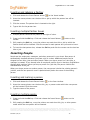
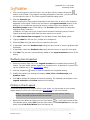
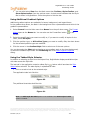
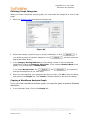
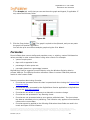
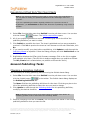
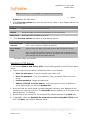
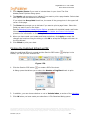
Animate chart navigation - this feature provides motion to certain tasks, such as:
–
–
–
when you open a chart, it appears to "fly in" from the bottom of the window
when you open a style, it appears to "fly in" from the style tab in toolbar
when you drill through the chart, the top box appears to "float" up or down
•
Use reflective photos - this feature displays chart photos with a slight downward
window reflection effect.
•
Animate the Profile View - this feature provides motion when the chart box flips
to reveal the profile.
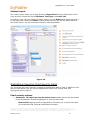
Showing or Hiding Toolbar Buttons in the Silverlight Chart
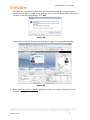
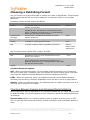
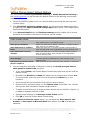
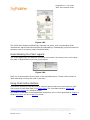
When you publish a chart for viewing through Microsoft Silverlight, you can choose to show
end user options on the toolbar or in a drop list.
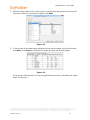
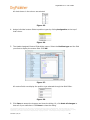
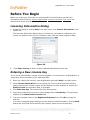
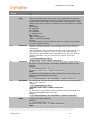
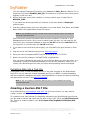
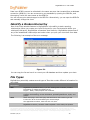
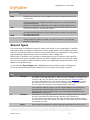
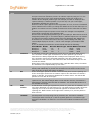
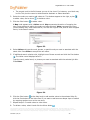
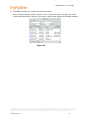
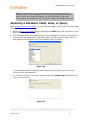
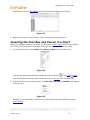
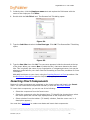
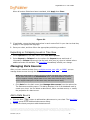
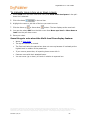
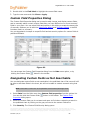
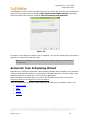
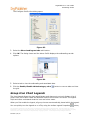
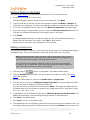
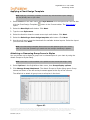
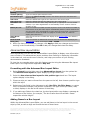
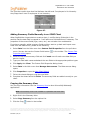
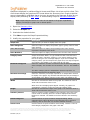
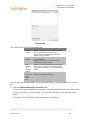
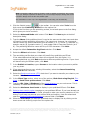
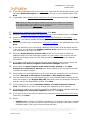
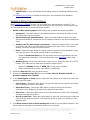
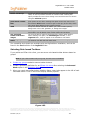
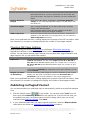
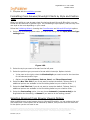
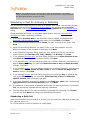
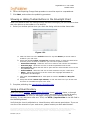
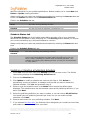
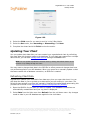
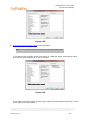
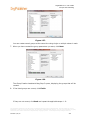
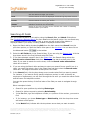
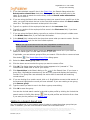
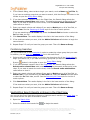
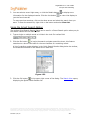
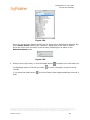
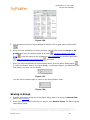
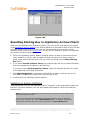
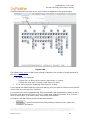
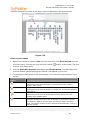
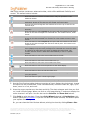
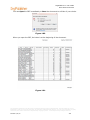
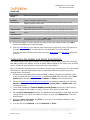
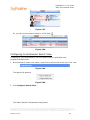
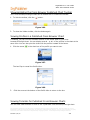
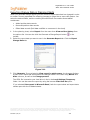
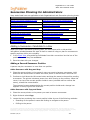
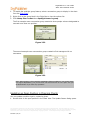
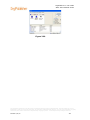
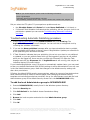
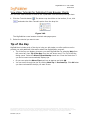
Select your toolbar options when you reach the dialog with the Toolbar Items table.
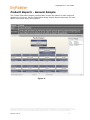
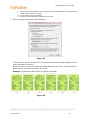
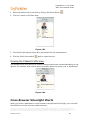
Figure 109.
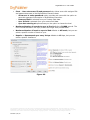
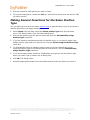
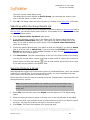
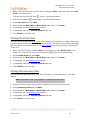
1. Clear the check box in the Include column for any task Button you do not want to
enable for your end users.
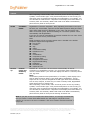
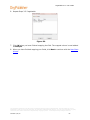
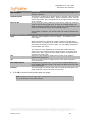
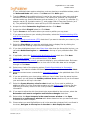
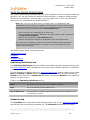
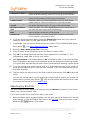
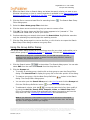
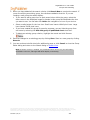
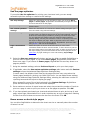
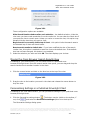
2. Accept the default Toolbar and Drop list command options, or clear the check boxes
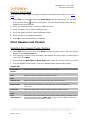
for those you do not want to enable for your end users. Options include:
•
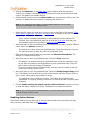
Personalize settings - Allows the end user to select a color scheme and animation.
•
Print this page - Allows the end user to send the published chart to PDF.
•
View Tutorials - Allows the end user to open and view video tutorials on how to use
the published chart.
•
Send feedback - Allows the end user to send comments via your e-mail client.
•
About - Allows the end user to see the version and copyright information for
OrgPublisher and Silverlight.
The information contained in this document is confidential and proprietary to Peoplefluent®. This information may not be
distributed or used for any purpose other than the evaluation of Peoplefluent® solutions, nor may it be disclosed to any party
without the prior written consent from Peoplefluent®. Copyright © 2001 - 2013 Peoplefluent®. All Rights Reserved.
Revised 7/31/13
192