1
Aquire OrgPublisher 10 User Guide
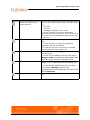
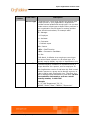
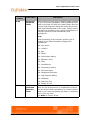
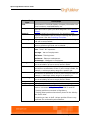
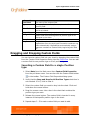
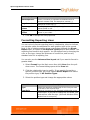
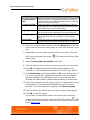
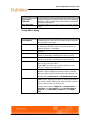
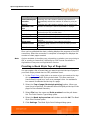
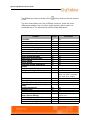
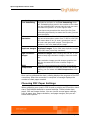
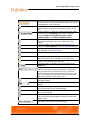
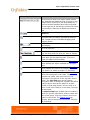
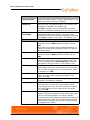
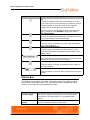
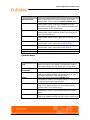
Field
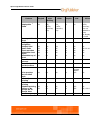
Not in group
Sounds Like
Description
Select this option if you want OrgPublisher to find only
the records that are not contained in the specified
group.
Select this option if you want OrgPublisher to find the
records that closely match the typed name or word.
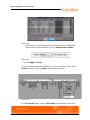
8. If you are using the Search dialog, select the Match Case check box
if you want the search to match upper or lower case formats in your
text.
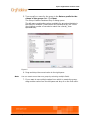
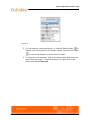
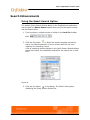
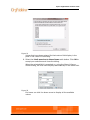
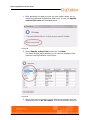
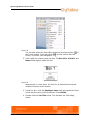
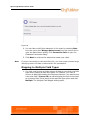
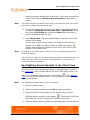
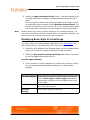
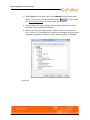
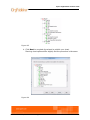
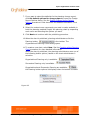
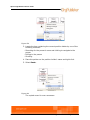
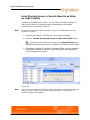
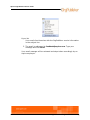
9. If applicable, you can select a group to filter your search. Click the
Set or remove a base filter button
dialog opens.
. The Search Base Group Filter
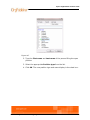
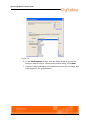
10.Select the Use a base group filter check box.
11.Click the down-arrow to select the group you want to use as a filter.
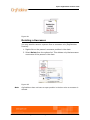
12.Click OK. The dialog closes and the filter button appears to be
"pressed in." This indicates that a base filter is set for your search.
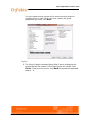
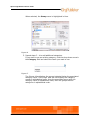
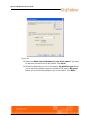
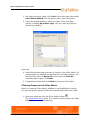
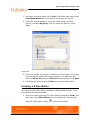
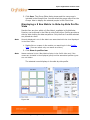
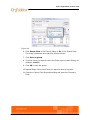
13.Click Search Now in the Search dialog or Go in the Search View. If
you chose a group filter, OrgPublisher searches only the selected
group and displays the matching records. If no group filter was
selected, the entire chart is searched and matching records shown.
14.If you are looking for a certain record, click on it. OrgPublisher moves
to that section of the chart and highlights the record you have
selected. If you are creating a new group, click Save as group.
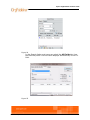
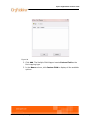
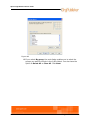
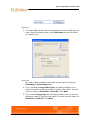
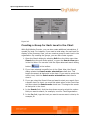
15.Type the name you want to use in the Enter a group name dialog.
16.Click OK to save the group.
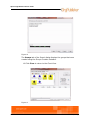
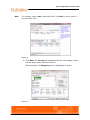
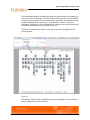
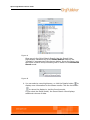
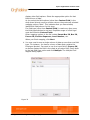
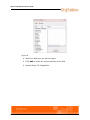
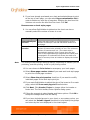
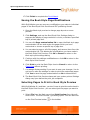
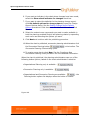
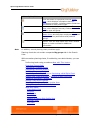
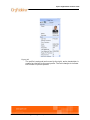
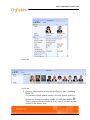
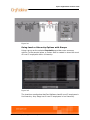
17.You can also include search results in the side by side profile by
clicking the Include the search results in Profile View button
. Side
by side profiles are limited to 6 at a time if you auto-pin the profiles
in the Search View.
Note:
All records in the Profile View, pinned or not, are included when you save
profiles as a group.
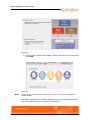
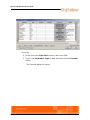
See Figure .
Search Your Charts/Searching All Fields
282