1
Troubleshooting
Q:
I can not communicate with my computer using serial (RS-232C)
communication, what should I do?
A:
Please confirm the following items.
Check the Main Unit
• Check to make sure that there is enough battery power and that the power of the
main unit is ON.
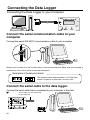
• Check the connection between the computer and the Unit.
• Check to make sure that the Unit is connected to the Serial Port (RS-232C) and
not connected to a different type of communication port (printer or other).
• If you are using a USB-Serial Adaptor, check to make sure that it is a Operational
Guaranteed Product
Check your Computer
• Make sure that the serial port settings are correct and that the port has not been
rendered unusable by the settings.
• With some computers, especially all-in-one computers the serial port serves as
the modem jack.
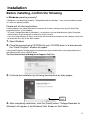
• Use the Device Manager to check whether the COM port can be used or not.(see
p.45)
• If you are using a USB-Serial adaptor cable, use the Device Manager to check
that the driver has been properly installed. If the driver is not installed properly,
contact the manufacturer of the USB-Serial adaptor cable being used.
• Check to make sure that the serial port has not been rendered unusable by the
BIOS setting.
• Sometimes communication will not work if a switch has been added to the serial
port (RS-232C) or an extension cable has been added to the communication
cable.
• If you have a computer with energy saving function settings, make sure that the
serial port has not been turned off.
• If the PC has two serial ports, try connecting the communication cable to the other
port and try communicating again.
• Check to see if some other communication software is in use.
• If you have access to another computer, try seeing if communication works with
the other computer.
If none of the above is the cause, there may be a malfunction or product failure.
Please contact your local dealer.
44
Distributed by MicroDAQ.com, Ltd.
www.MicroDAQ.com
(603) 746-5524