1
* How to check your Communication Port?
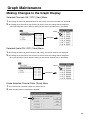
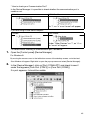
In the Device Manager it is possible to check whether the communication port is
usable or not.
If Usable:
If Not Usable:
An "!", an "x" or an "arrow" will appear
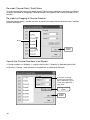
If you are using a USB-Serial Adaptor:
If Usable:
If Not Usable:
Under "Other Devices" an "!", an "x" or
an "arrow" will appear.
For details about checking a communication port, see below.
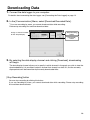
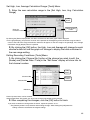
1.
Open the [Control panel]-[Device Manager].
For Windows 8:
By moving the mouse cursor to the left bottom corner of the desktop screen, a miniaturized
Start Window will appear. Right click to open the pop-up menu and select [Device Manager].
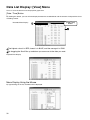
2.
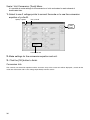
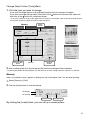
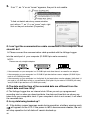
In the [Device Manager], click on [Port (COM&LPT)] and check to see if
under that appears [Com Port (COM1)] or [Com Port (COM2)].
If a port appears, it should be usable.
45
Distributed by MicroDAQ.com, Ltd.
www.MicroDAQ.com
(603) 746-5524