1
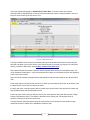
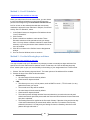
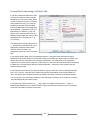
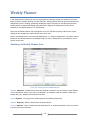
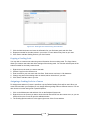
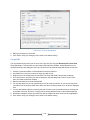
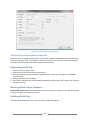
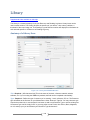
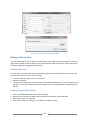
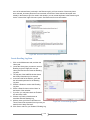
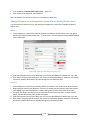
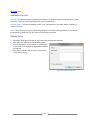
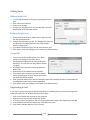
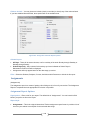
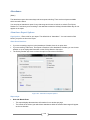
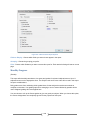
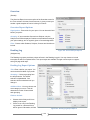
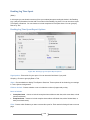
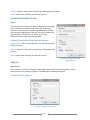
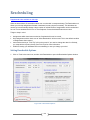
You can create one or more Grading Scales to meet your needs. Each Grading scale has letter grade
and Pass/Fail options. Grading Scales can be attached to Courses with or without weighted grading.
Homeschool Tracker Plus starts with a Default Grading Scale. This scale can be edited for content, but
it cannot be deleted, nor can the scale name be changed.
Grades can be reviewed on the Overview Screen and printed in the Overview Report, Report Card and
Transcript.
Grades
If you choose to create Report Cards or Transcripts, you’re going to need to grade some or all of your
student’s assignments.
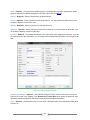
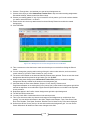
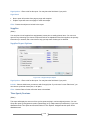
To grade an assignment, enter the number of points possible and the points earned. When the
assignment is marked as complete, Homeschool Tracker Plus will calculate the percentage grade by
dividing the points earned by the points possible. The letter grade awarded will be based on the grading
scale you set up. The Date Completed that you enter will control the Term and Year the grade will be
attributed to.
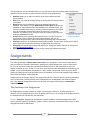
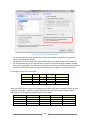
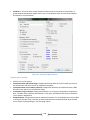
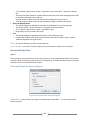
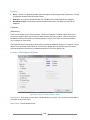
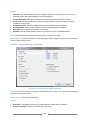
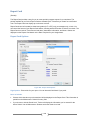
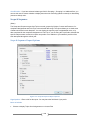
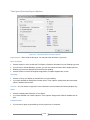
Homeschool Tracker Plus allows you to choose how grades are to be calculated for your students. You
must choose one method for all students. You may change your selection at any time. Make your
selection in Tools: Options: Assignments. The options are outlined below. The examples demonstrate
how the different options may affect your student’s overall grades.
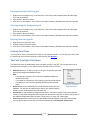
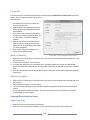
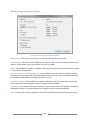
In addition to selecting the calculation method, you can also choose how percentage grades will be
rounded: to a whole number (0); to one decimal place (0.0); or to two decimal places (0.00).
Grade Calculation Method – Averages (default)
This method grades each assignment. Those grades are then averaged together for an overall Term
grade. Then, the Term grades are averaged for a Yearly grade as reported on the Report Card and
Transcript.
Individual Assignments
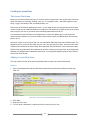
1. Grades are only calculated for Assignments marked as complete.
2. To create a Grade for a completed Assignment you must enter Points Possible and Points Earned.
3. Homeschool Tracker Plus calculates the grade for the assignment by dividing the points earned for
the Assignment by the points possible for the Assignment.
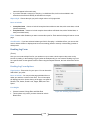
4. A letter grade is appears in the Assignments add/edit window based on the Grading Scale you have
selected. The percentage appears in the Grade column of the Assignment grid. For more details on
this, please see Grading Scales, below.
Term Grades
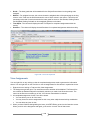
5. For Courses without weighting, or if you are not using Courses, the Term grade is calculated by
taking an average of the grades that have been calculated for each individual Assignment in that
Course – adding up all the calculated percentage grades for assignments in that Course and dividing
by the number of graded assignments for the Course.
133