1
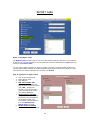
How do I mark a day as SICK?
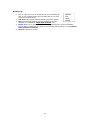
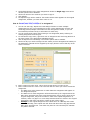
1. Tracker BASIC EDITION only recognizesPresent or Sick days. No other absence
excuses can be entered. The PLUS version does allow you to enter a reason for
absence.
2. You can only mark SICK days for one student at a time.
3. You can only mark one date at a time.
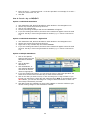
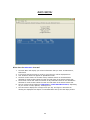
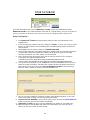
4. Right-click on the date you wish to mark and choose SICK.
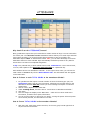
5. The selected date will change to a green background with the word “Sick”.
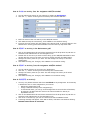
How do I return a day to unmarked from PRESENT or SICK?
1.
2.
3.
4.
You can only unmark one day at a time
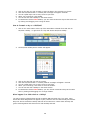
Right-click on the day you wish to change to unmarked
Choose NONE from the context menu
The selected date will return to gray with no text notation
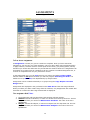
What is a HOLIDAY?
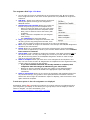
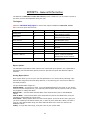
Holidays are school-wide days off. When marked in advance, they can be skipped over in the
Copy and Reschedule functions. Holidays appear on the student attendance calendar as
periwinkle days with the word “holiday”. In Homeschool Tracker Plus, you can designate a
day as Holiday, Vacation or Other and also enter a brief description of the reason for the time
off, if you desire.
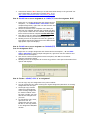
How do I mark a day as a HOLIDAY?
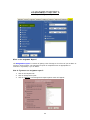
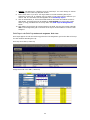
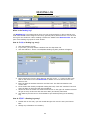
1. Click on the Tools button at the top of the Attendance Calendar form and click on
Set/Clear Holiday… or right-click on a day and choose Set/Clear Holiday…
2. The Set/Clear All Day Event window will appear.
25