1
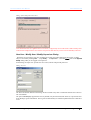
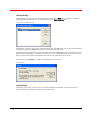
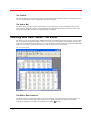
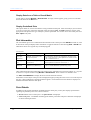
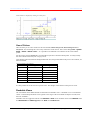
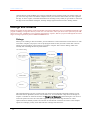
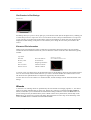
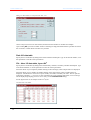
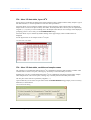
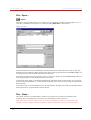
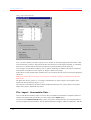
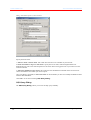
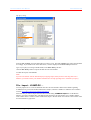
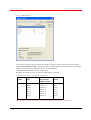
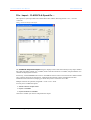
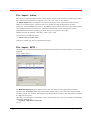
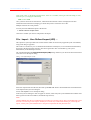
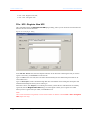
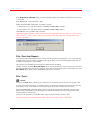
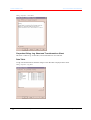
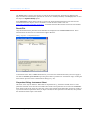
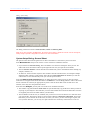
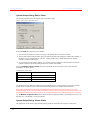
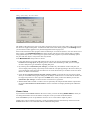
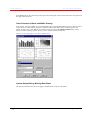
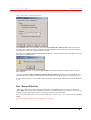
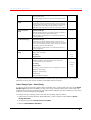
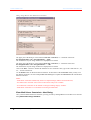
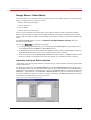
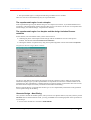
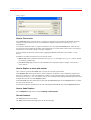
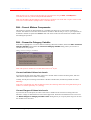
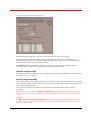
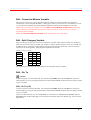
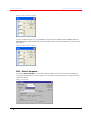
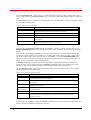
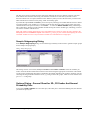
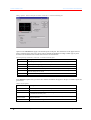
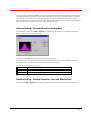
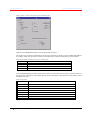
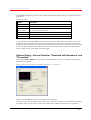
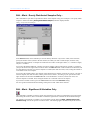
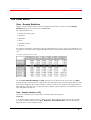
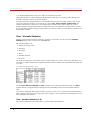
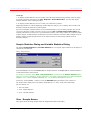
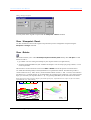
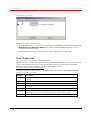
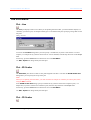
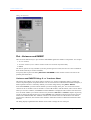
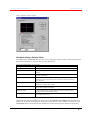
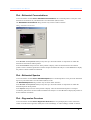
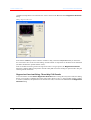
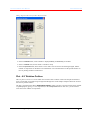
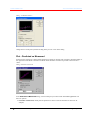
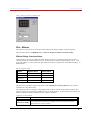
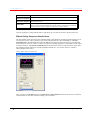
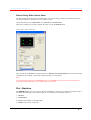
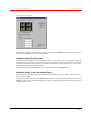
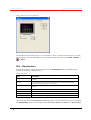
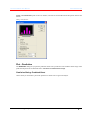
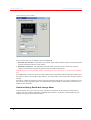
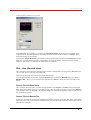
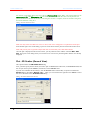
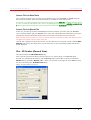
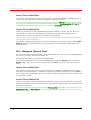
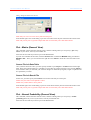
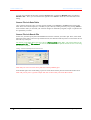
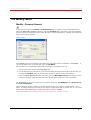
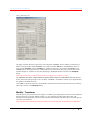
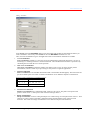
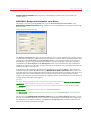
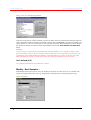
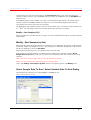
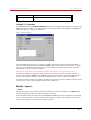
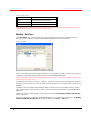
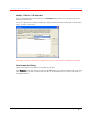
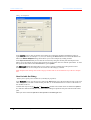
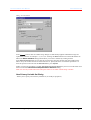
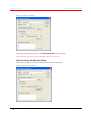
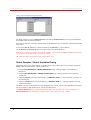
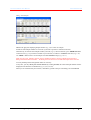
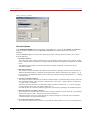
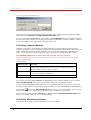
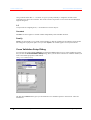
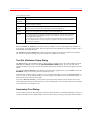
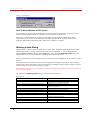
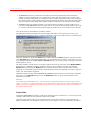
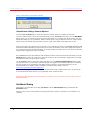
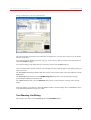
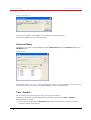
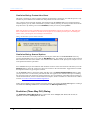
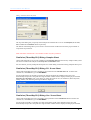
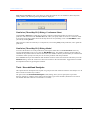
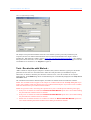
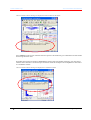
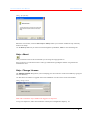
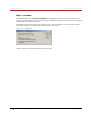
The Unscrambler User Manual Camo Software AS Dialog: Select Samples Click on the grey cell displaying Sample Number (e.g. 12) to select one sample. Include several Sample Numbers in one click if you want to perform a continuous selection. Alternatively, click on the first Sample Number you want (e.g. 3), then scroll down, press <Shift> and click on the last one (e.g. 15) you want to include in your selection, to achieve a continuous selection (e.g. 3-15). Use <Ctrl> + click to select several samples in a non-continuous range (e.g. 12, 17). Note: In some cases, multiple selection may be disabled. Example: selecting a Reference Spectrum as Background Information for EMSC – the dialog does not allow for more than one sample in the selection. You may scroll up/down and right/left whenever necessary. At any time, you may check your current selection by clicking Current; the selected sample numbers will be displayed in the field next to that button (e.g. 3,7,12,17,21,27). When you are satisfied with your selection, click OK to go back to the previous dialog; else click Cancel. The Unscrambler Program Operation The Modify Menu 251