1
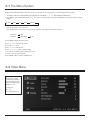
4-1 The Menu System
After you have installed the battery in the remote control, you may want to set some preferences on the LCD using the menu system.
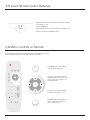
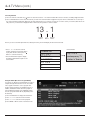
• The buttons for On-Screen Display (OSD) option adjustment include MENU, 3, 4, 5, 6, OK or ENTER and EXIT buttons.
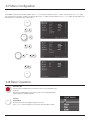
• Press MENU to open the OSD Menu then press 5 or 6 button to select the pages. The pages are displayed in the following sequence (circular
display)
Video
Audio
TV
Setup
Parental
Note: TV menu page is only for TV mode.
• Press the Menu button on the remote control or on the side panel, it will change in the following sequence
Main Menu
Exit
Sub Menu
Main Menu Exit
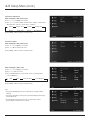
1) Press MENU to display the menu system.
2) Press 5 or 6 to select the menu pages.
3) Press OK or 4 to enter.
4) Press 5 or 6 to select an item.
5) Press 3, 4, 5, 6 to select or adjust a setting.
Note: If you do not make a selection within 10 seconds,
the menu screen closes automatically.
7) Press MENU or EXIT to return or exit OSD menu.
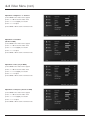
4-2 Video Menu
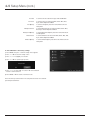
Whether adjusting for
the first time, or editing
current picture settings, it
is recommended to start
with the following settings:
Brightness: + 51
Contrast: +68
Hue: -19
Color Temperature: Cool
21