1
JAWS announces when an HTML element (such as text or an image)
has the OnMouseOver attribute. This attribute causes an event to occur
when the mouse pointer is moved over the element. When you move to
an element with this attribute, press CTRL+INSERT+ENTER to simulate
the effect of moving the mouse pointer over it. JAWS will tell you if any
part of the page changes.
Quick and Easy Navigation
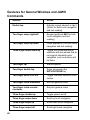
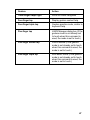
JAWS provides easy to use and remember commands to move through
Web pages. You can press a single letter on your keyboard to move to
an item. For example, you can press T for table, F for form control, V for
visited link, H for heading, and so on. Add SHIFT to move to the previous
element of that type. For a complete listing of these commands, refer to
the JAWS help system.
Displaying Lists of Information
JAWS can compile lists of frames, links, headings, or form fields on a
Web page so you can quickly find what you need. Press INSERT+F9 to
display a list of all frames on the current page. Press INSERT+F7 to
display a list of all links on the current page. Press INSERT+F6 to display
a list of all headings on the current page. Press INSERT+F5 to display a
list of all form fields on the current page. Use the arrow keys to select an
item and press ENTER to move to it.
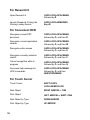
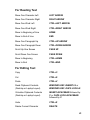
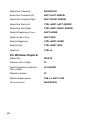
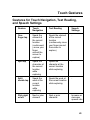
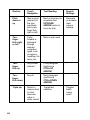
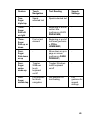
In addition, if you hold down CTRL+INSERT and press one of several
Navigation Quick Keys, JAWS displays a list of those elements on the
current page. You can then select an item using the arrow keys and
press ENTER to move to it. For example, to display a list of check boxes
on the current page, press CTRL+INSERT+X.
Tip:
16
Pressing INSERT+F3 allows you to view any of the lists of
information that are available for Web pages.