1
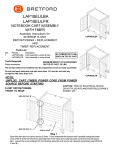
ELECTRICAL: Avoid sparks. Avoid arcing
Always turn OFF the power to the cart before plugging IN or OUT!
How Does a Laptop Computer Manage Heat?
ELECTRICAL: For Safety Purposes, make sure all electrical components do not exceed the maximum load rating of 12 amps.
To manage the heat stress of the battery, computer engineers include
sophisticated battery management functions in the design of the computers.
They can be found in two places: the external charger & internal to the
notebook computer itself. The transformer converts the alternating current
from the wall socket to a lower voltage direct current. Besides charging the
notebook’s battery these “bricks” as they’re sometimes called, can supply
enough electricity to operate the laptop and charge the battery
simultaneously.
ELECTRICAL: Risk of electrical shock. Do not plug the power cord into another extension cord or relocatable power tap.
ELECTRICAL: The power strips inside the laptop cart are only for charging laptop computers. Any other use may cause an
overload for the Power Management System, causing the “Power Manager” to shutdown. To reset the “Power Manager”, turn off the
main power switch, unplug the non-laptop device, then turn the main switch back on.
CAUTION:
Be sure each laptop computer is turned OFF before plugging into the cart..
CAUTION: Do Not block the ventilation holes on the cart. Proper air flow is required for safe operation of equipment.
Deep inside the computer a dedicated microcircuit continuously monitors
and manages the charging current, voltage and temperature of the battery. If
the temperature of the battery exceeds limits, the microcircuit will stop
charging the battery until the temperature drops to acceptable levels.
CAUTION: Cart with computers should be kept in a room with a maximum temperature not to exceed 77° F or 25° C.
CAUTION: Maximum weight of accessories on top of cabinet is 25 pounds.
CAUTION: Avoid loading equipment in the cart in a uneven fashion. Uneven weight distribution could cause a hazardous condition.
Keeping the battery cooler while charging allows the battery to charge faster.
Cable Management System … Done at your Desk!
Step-by-Step Instructions to Organize Your Cords
•
Unpack the Laptop Computers, being careful to keep each computer with its matching cord set.
•
Remove the four steel panels that are hooked into the back of the cart.
•
Thread the Velcro straps through the slots on the panel, tacky side out.
•
Bundle the cords and lay them on one side of the adapter leaving approximately 16” of the cord that plugs into the
computer and 3” of the cord that plugs into the power strip.
•
Place the bundled cord set between one of the Velcro straps and secure to the panel by running one end of the strap
through the buckle and cinching it tight against itself.
•
When all cord and adapter sets have been secured to a panel, lock it into the Divider Panel using the four slots above
each power strip.
•
Pass the cords through the holes in the divider and place them in the cable management channel above each storage
slot. Thread the end of the cord through the cut-out at end of the channel to hold it in place.
•
Plug the other end of the cord set into the outlet in the power strip directly below the panel.
“A place for everything, and everything in its place.”
You know from personal experience the value of keeping your closet neat and organized. You know exactly where everything is when you open the door. So Bretford developed a “closet” for all the
cords and cables associated with the laptop computers.
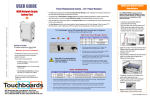
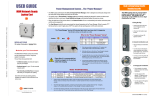
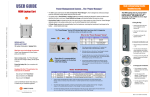
USER GUIDE
MDM Laptop Cart
MDMLAP20
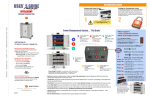
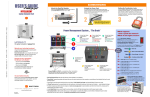
20 Laptop Computers in Vertical Slots
Dual Handle Design
Allows both teachers and
students to push and pull the
cart easily and safely.
Directional Locking
Casters can be locked as a
rigid caster for easy rolling down
the hallway, or unlocked to swivel
for easily getting into tight spaces.
Front View
Laser-Cut ID Numbers
in both front & back help keep
computers and their cable sets in
the right place and make it easy to
identify if something is missing.
Power Manager
keeps the constant flow
of power from a single
wall outlet charging
batteries where needed.
Cord Winder
on the side panel
provides easy access
up high, so that the
cord does not get
crimped under the
wheel
•  Your MDM Laptop Cart has its own “Cable Clutter Closet” – a lockable compartment at the back of the cart especially designed to keep all the cables away from the computers and from students
retrieving the computers from the front of the cart.
•  The “Desktop” Cord Management system allows the IT Coordinator to organize the computer cord sets while seated at a table. No more bending or kneeling behind the cart!!
Back View
•  The interior Divider Panel separates the cart so that 75% of the cart is dedicated to the computers in the front and 25% is dedicated to cables and power adapters in the back. Holes in the Divider
Panel allow the computer connector cables to pass thru and be easily connected to the computers for charging.
•  By separating the computer from its power adapter, you minimize the amount of heat beside the computer battery, allowing it to charge at a lower temperature. Cooler temperatures allow the battery
to charge faster.
•  The Divider Panel also protects your technology investment; even if access is gained through the back panel the computers in the front compartment are secure.
•  Comes with Laser Cut ID Numbers for quickly matching computers with their cord sets.
Removable Cord
Management panels let IT
Coordinator wrap cable sets at a desk.
No more kneeling or bending behind the
cart organizing the power cords.
Security provided by duallocking handles built right into the
steel constructed doors
®
Typically, every laptop computer comes with 12 feet of cable, plus the adapter. 12ft x 30 laptops = 360 feet of cable that has to go somewhere
11000 Seymour Avenue
Franklin Park, IL 60131 USA
www.bretford.com
800 521 9614