1
Chapter 2: Viewing Images
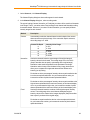
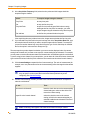
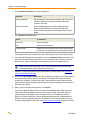
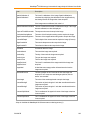
Method
Description
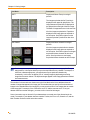
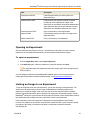
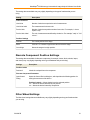
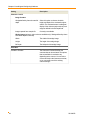
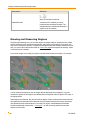
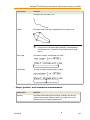
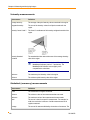
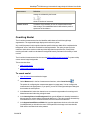
Pixels that are equal to and above the high value are replaced with the
maximum intensity of the channel display color. As you decrease this
number, you increase the number of pixels that are replaced with the
maximum intensity of the channel display color.
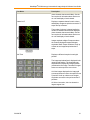
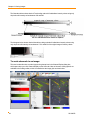
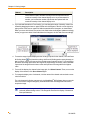
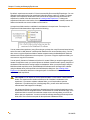
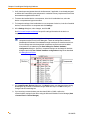
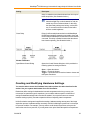
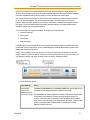
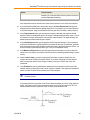
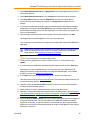
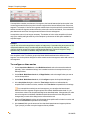
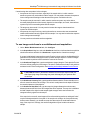
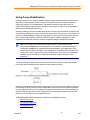
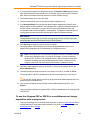
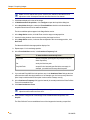
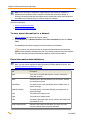
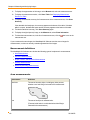
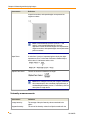
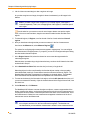
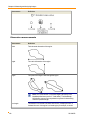
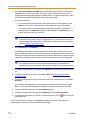
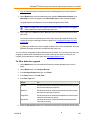
3. If you selected Normalize or Fixed scaling, you can change the range of intensity values for a
channel by dragging the lower or upper limit bar on the histogram to the left or to the right or by
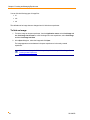
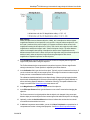
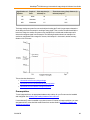
typing values in the lower or upper limit fields that are below the histogram, as shown below.
When you move the limit bars, the values in the fields below the histogram update accordingly,
and as you type new values in the fields below the histogram, the limit bars move accordingly.
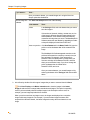
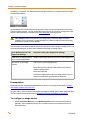
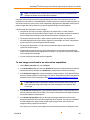
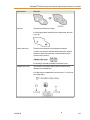
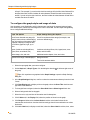
4. To reset the range of pixels displayed to the full range of pixels for the channel, click the Reset
All Scaling button . For Normalize scaling, the Reset All Scaling option resets the range so
that it is from 0 (zero) to 100 percent of the original range of intensity values. For Fixed scaling,
the Reset All Scaling option resets the range to the original range of intensity values and adds
5 percent of the range below the lowest value and 5 percent of the range above the highest
value.
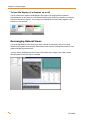
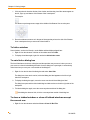
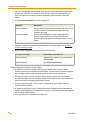
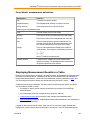
5. To turn off the display of a channel in the image grid, click Show Channel. Then, to turn on the
display of the channel, click Show Channel again.
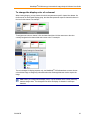
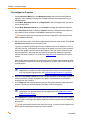
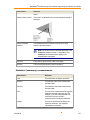
6. To change the display color of a channel, click the name of the channel color and select a new
color from the list.
The color changes for display purposes only; the MetaMorph® NX Software does not save the
new color with the image or change any information about the wavelength that was used to
acquire the image.
Note: When you change channel display colors, only the channels in the current
(selected) dataset change colors. The changes do not affect the display of channels in
other open datasets.
30
5011685.B